Settings → This Mac → Workspace opens with Where it works. The rest of that pane, from Privacy & Security on, is covered in the sandbox and guardrails pages.
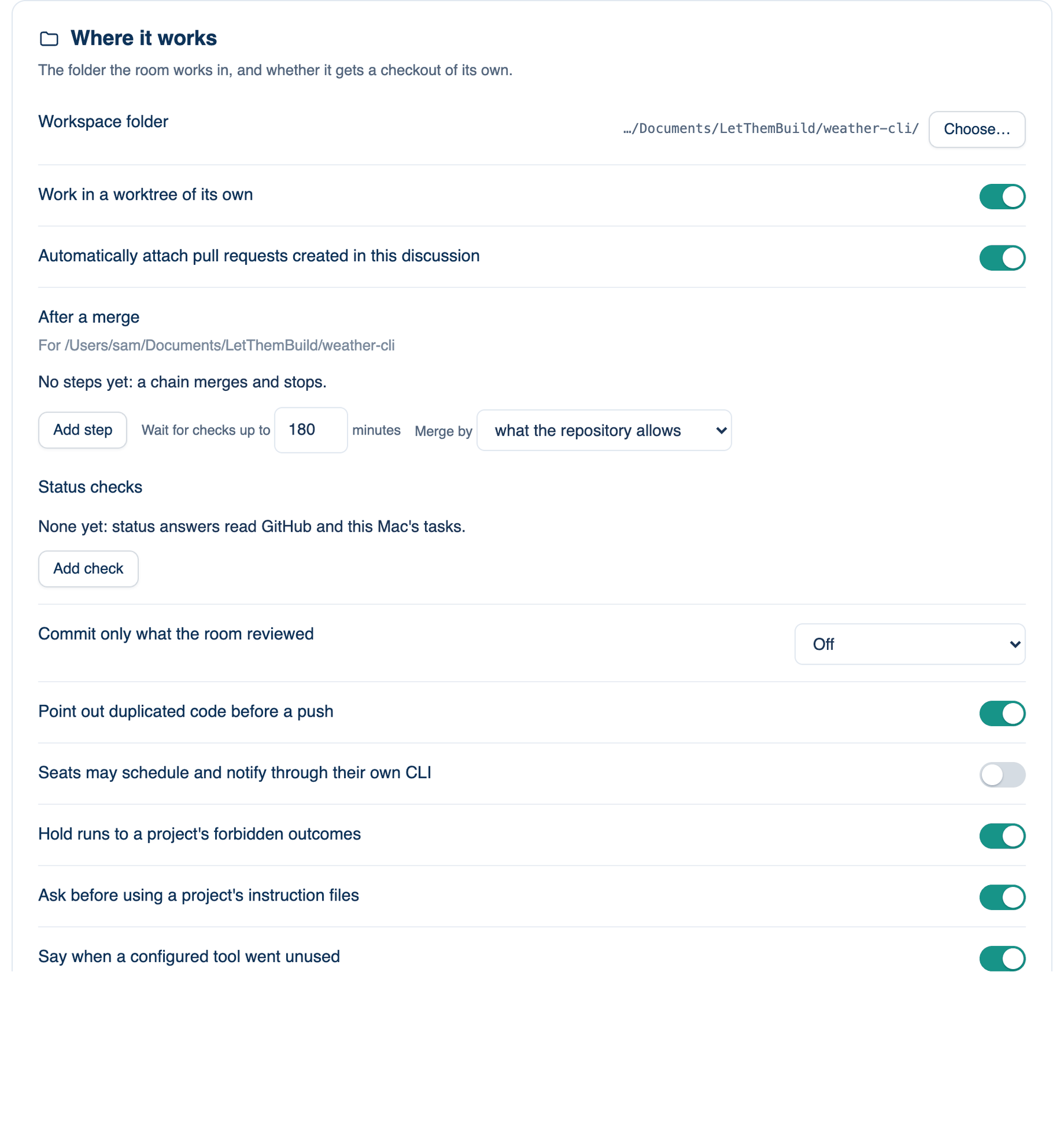
Workspace folder
The folder the app is pointed at now. It follows the discussion you open, and a new discussion that brings no folder of its own starts from here.
Where to find it. Mac only: Settings → This Mac → Workspace → Where it works. Default: ~/Documents/LetThemBuild.
How to use it.
- Click Choose… and pick a folder. The app switches to it, as if you had picked it from the composer's folder chip.
- Each discussion remembers its own folder, so the ones you already have do not move.
For where folder-less discussions are created and how they are named, see General → New workspaces go in.
Work in a worktree of its own
Each discussion gets its own branch and its own checkout, made beside your repository with git worktree. Your working tree is never touched; at the end you review the result and merge it, or discard it.
Where to find it. Mac only: Settings → This Mac → Workspace → Where it works. Default: on. The worktree chip beside the branch in the composer changes it for one discussion.
When to use it. Almost always in a git repository, and always when two discussions work on the same repository at once.
When not to use it. When you want to watch files change in the editor you have open, or the project needs a slow first build that a fresh checkout would repeat. Each worktree is a full checkout and takes disk; Storage shows how much.
What changes. Off: the room edits the files you have open, on your current branch.
Pull requests and merges
| Setting | Default | What it does | Change it when |
|---|---|---|---|
| Automatically attach pull requests created in this discussion | On | When a run ends, a pull request a seat opened for the discussion's branch joins the discussion's list. | You only want the pull requests you open yourself from the strip. |
| After a merge | No steps | Steps for this repository, such as deploy or install the app on this Mac. Merge when checks pass on a pull request waits for its checks, merges only if all passed, then runs the ticked steps one at a time in a copy of the base branch kept beside the repository, never your checkout. It stops at the first failure. A step's "only if" command skips the step instead, for example when a phone is not plugged in. Add step adds one. Needs a discussion open in a repository. | You repeat the same deploy after every merge. |
| Wait for checks up to … minutes | 180 | How long Merge when checks pass waits, from 10 to 1440. | Your CI is slower or faster than that. |
| Merge by | What the repository allows | merge commit, squash or rebase. | The repository allows several and you want one. |
| Status checks | None | Each a label and a quick command, such as the installed app's version or the deployed site's health. When the room checks status, it runs them briefly and reports their first lines. Add check adds one. | You ask "is it deployed?" often. |
| Merge from this Mac when GitHub won't | On | Some repositories do not allow GitHub's merge-when-ready. On such a pull request, Merge when ready has this Mac wait instead: it merges once every check has passed on the latest commit, by the Merge by method, and never otherwise. LetThemBuild has to be open. Off, the switch says GitHub refused. | You would rather allow auto-merge in the repository's settings, or merge by hand. |
Further reading. git-worktree documentation, the Git project. Pro Git, Git Branching, Chacon and Straub, 2014.