These three answer one person: you. The shared rules on the Slack and Teams page apply here too, including /new and "on my Mac".
Telegram
A bot you make in Telegram, connected to your account, answering only you.
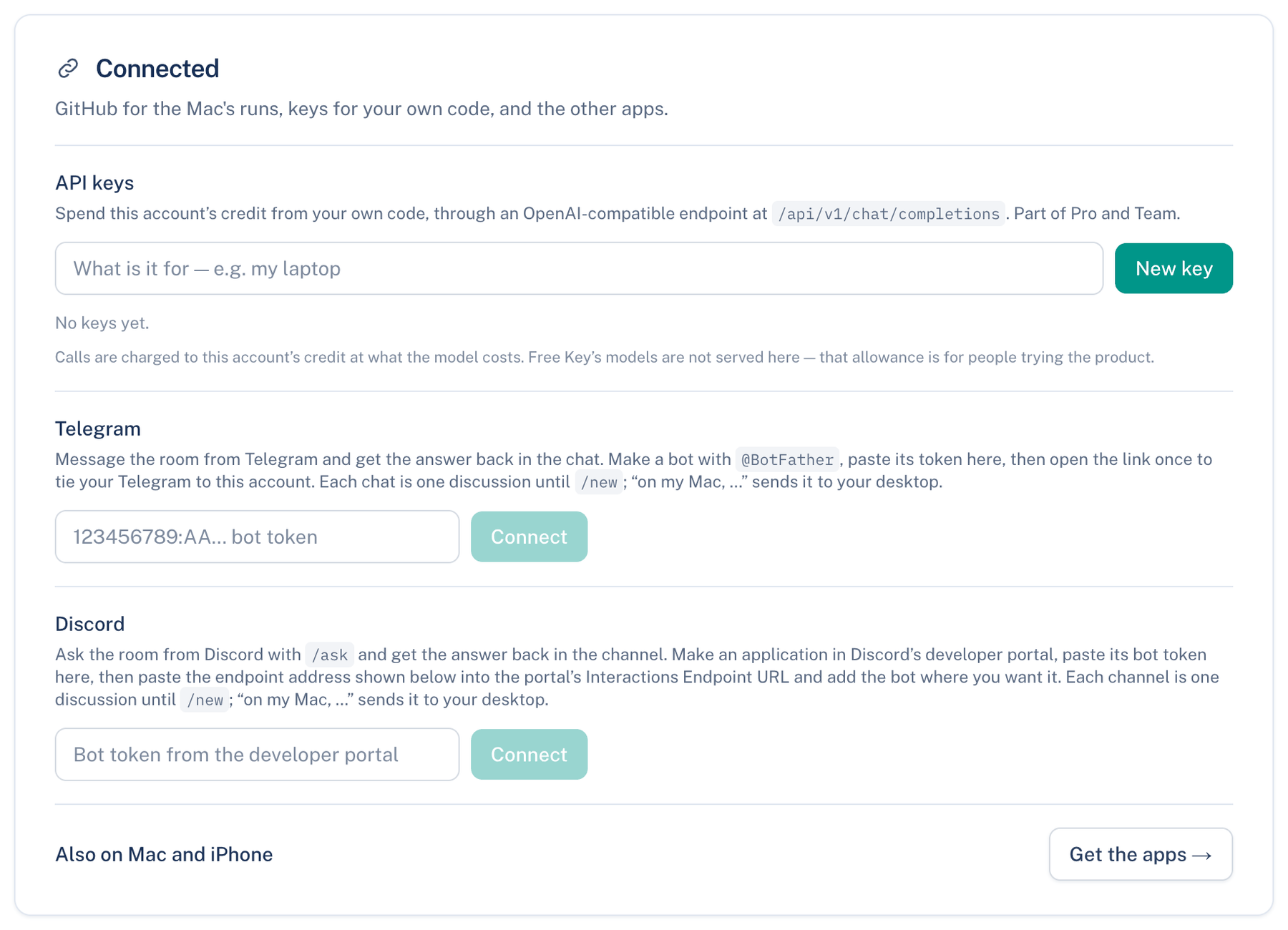
Where to find it. Web: Settings → Account → Connected → Telegram. Mac: the same card has a Set up on the web link. Default: not connected.
How to use it.
- In Telegram, make a bot with @BotFather and copy its token.
- Paste the token into the Telegram row and press Connect.
- Press Open in Telegram to link and send the message it opens. The link works once, within an hour; the card shows a fresh one if it lapses.
- Message the bot. The answer comes back in the chat with a link to the discussion.
Anyone else who finds the bot is told it is not theirs. To link a different Telegram account, Disconnect and connect again.
When not to use it. In a group chat with other people: what they write is not from your account, and the bot ignores them anyway.
Discord
Discord sends us slash commands, not plain messages, so you talk to the bot with /ask.
Where to find it. Web: Settings → Account → Connected → Discord. Mac: Set up on the web.
How to use it.
- Create an application in Discord's developer portal and copy its bot token.
- Paste it into the Discord row and press Connect. Three commands are registered on your application: /ask, /new and /link.
- Copy the Interactions Endpoint URL the card shows into your application's settings in the developer portal.
- Press Add the bot to Discord to add it to a server, or use it in DMs.
- Run /link with the code the card shows. It works once, within an hour.
- /ask your request. /new makes the next /ask start a fresh discussion.
What changes. One application answers one account. Disconnect removes the commands from the application and forgets its token.
iMessage
Message your Mac from your phone and get the room's answer back as a message. Only messages from contacts you list are read; the query names those contacts, so nobody else's messages leave the Messages database.
Where to find it. Mac: Settings → This Mac → General → iMessage. macOS only. Default: off.
How to use it.
- Tick Answer iMessages from listed contacts.
- Under Contacts, add phone numbers with the country code, or iMessage email addresses. Your own number is the usual one.
- Press Full Disk Access… and Automation… and grant both in System Settings. The app cannot grant them for you.
- Send the Mac a message. It starts a discussion in the workspace the app is standing in, and the agreed answer comes back as a message.
When not to use it. When the Mac sleeps or the app is closed: nothing answers. Full Disk Access is broad, so leave this off if you do not need it.