A schedule is a discussion the room starts at a time rather than when you press Enter. Where you create one decides where it runs.
- On your Mac: made in the Mac's Settings. It runs with that Mac's seats and tools in the last workspace you used, so it can read your checkout, run tests and change files. The app has to be open; a time missed while the Mac sleeps runs when it wakes, that day.
- On our servers: made on the web or the iPhone. It runs whether or not a device is awake, with no tools and no workspace. See the page on server runs.
Signed in, each app lists the other kind read-only; change a row where it runs. Every run is paid for like any discussion.
Schedules are a time of day and a set of days. There is no cron field: "weekdays at 09:00" is the crontab line 0 9 * * 1-5, and that is as fine-grained as a schedule gets.
Scheduled
Where to find it. Mac: Settings → The room → Schedule → Scheduled, or the Schedule shortcut in the sidebar. Web: Settings → Schedule. iPhone: Settings → The Room → Schedule, or from the drawer.
Each row says when it runs, when it next runs or that it is paused, its ceiling, any watched page, and its last few runs with their cost.
| Button | What it does |
|---|---|
| Run now | Starts it now, in a fresh discussion |
| Notes… | What this task remembers between runs: read, edit, clear, or switch off |
| Pause / Resume | Stops it firing without deleting it |
| Delete | Removes it; discussions it already started stay |
A project can also keep schedules in its repository, in .letthemchat/automations.json (up to 20). They appear under the list, read-only; change them with a commit. Elsewhere on your account appears only when you are signed in and have schedules that run on our servers or on another Mac.
Add one
How to use it.
- Set the Time (default 09:00, in this Mac's time zone) and the Days: every day, weekdays or weekends.
- Type what to ask, as you would in the composer. Add stays greyed until there is a prompt.
- Optional, on the second line:
- max $ per run: what one run may spend at most. Blank leaves only your session ceiling.
- watch a page: an address. The task runs only when that page's words changed since the last check, with the difference attached. An unchanged page costs nothing and the run shows as "found no change".
- keep a page (off): publishes each run's agreed answer to one page on your account, at a link that stays the same.
- keep notes (ticked for a new task): each run is handed what the last one noted, such as a baseline, and leaves new notes.
- Optional: set When it runs to after another task. The time and days step aside. Tick even if that one fails to run it after a failed or stopped task too. A chain runs at most ten tasks in a row, and a chain that loops back on itself is refused.
- Press Add. The row appears under Scheduled.
When to use it. A morning review of what landed on main overnight, a weekly dependency check, a page watched for changes.
When not to use it. Anything that needs your answer partway through. Nobody is at the keyboard, so a seat that asks for approval is refused; set Permission to Auto or Bypass if the task must run commands, and give it a ceiling. A schedule never interrupts a live discussion: a slot that arrives mid-run waits until the room is free.
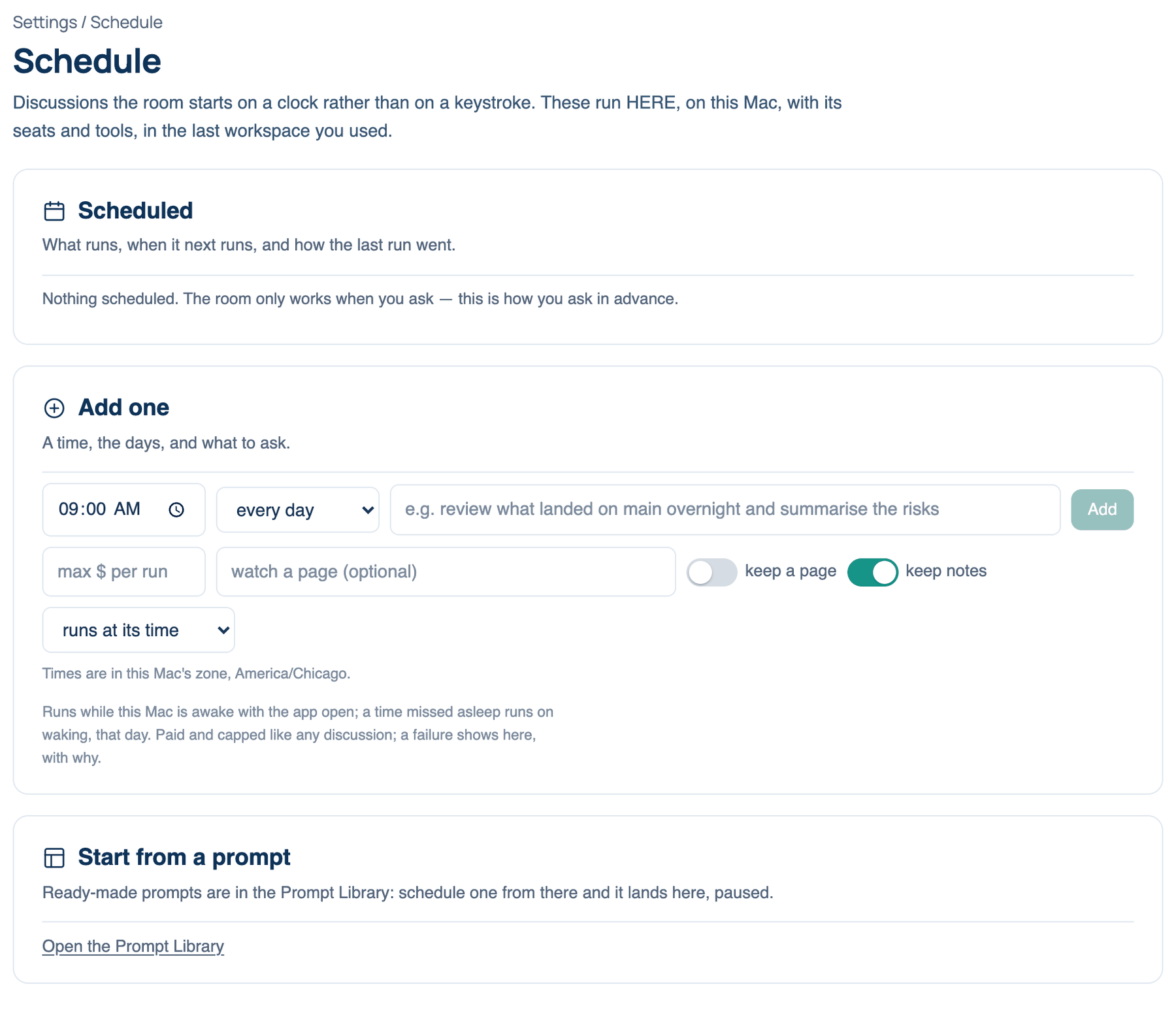
Start from a prompt. The last card opens the Prompt Library; what you schedule there lands here, paused.
Further reading. crontab — The Open Group, POSIX.1-2024. LLM06:2025 Excessive Agency — OWASP GenAI Security Project, 2025.