Every project has a page: what it is, a composer, its recent discussions and schedules, and three things the room reads on every turn there — instructions, reference files and the project's memory.
Where to find it. The folder's menu → Project overview on every app, or the ⌂ beside a project in the sidebar on the Mac and the web.
Four tabs. Overview, Instructions & Files, Memory & Notes and Discussion Defaults. On the web each has its own address (?tab=memory); on the iPhone they are a list you tap into.
Nothing to save. Every field saves as you change it; typed text after a short pause. Saving… / Saved beside the title says how it went, and Couldn't save — retry tries again. Only what destroys something asks first.
Project settings (top right, or the folder's menu) is one page of four cards: General, Tickets & Jira, Source folders, Components & releases (/settings#jira scrolls to one). Searching settings finds them.
Who edits. Its owner, and in a team project the team's owner and admins. Members read.
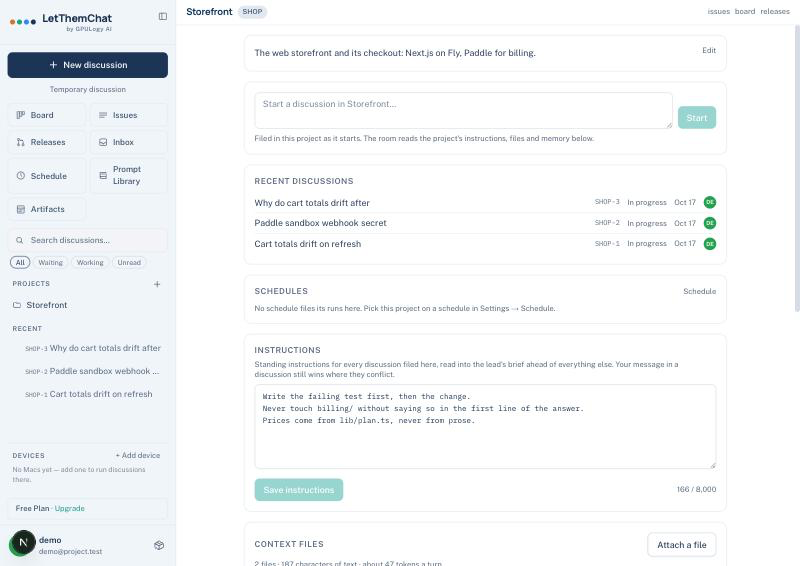
Description and composer
The description is for people: a line or two about what the project is. The room does not read it.
The composer starts a discussion filed in the project, In Turns or Side-by-side. On the Mac it runs in the project's folder and the words go at once; on the web as soon as it opens; on the iPhone they land in its box, as Use now does. It begins with the project's Discussion defaults (who leads, when it stops, which seats), each its own choice from then on; unset, the account's.
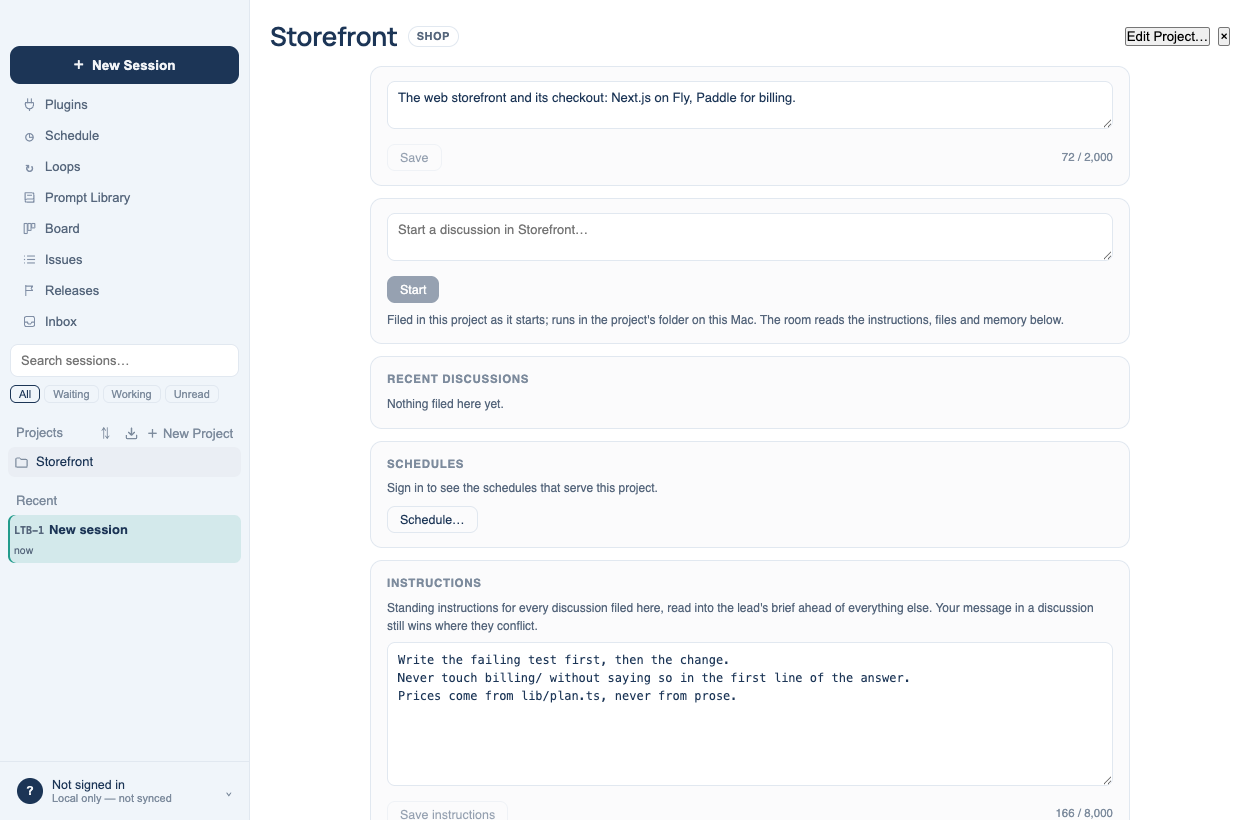
Instructions
One text per project, read into the lead's brief ahead of everything else for every discussion filed there, on the Mac and on the server alike. They sit between the room's rules and your message: where they conflict with what you ask in a discussion, your message wins; the room's own protocol — the agreement token, "Objection:", never claiming to have run what was not run — wins over both. Up to 8,000 characters; synced through the folder, newer text winning.
On the Mac, a project whose folders already hold an AGENTS.md or CLAUDE.md shows them under Repository instructions, read-only. The lead reads them from the checkout as before; they are shown, never copied into the project's own text.
Reference files
Files attached to a project are read as text once, when they land, and that text goes with each turn of a discussion filed there — to the lead, or the seat you addressed. The page shows the total: how many files, how many characters, about how many tokens a turn, because every turn pays for them.
| Setting | Default | What it does |
|---|---|---|
| Include files with every message | On | Off, the files stay on the page and no discussion receives them |
| Maximum file text per message | 60,000 characters | Past it, each file keeps a fair share — its head and its tail, with a line saying how much was left out |
Up to twenty files of 8 MB each, served only to those who may read the project.
Project memory
A discussion filed in a project teaches the room about the project, not only about you: what it learns goes to the project's pool and is read into every discussion filed there, whoever on the team started it. Secrets and personal data are refused, as in your own memory. Editors may add a fact by hand or forget one.
| Setting | Default | What it does |
|---|---|---|
| Also use my account memory | On | Off, discussions here read the project's memory alone, not what the room knows about you |
Repository notes that Mac runs saved to the checkouts are on the Memory & Notes tab, a repository at a time with a search, read-only. Manage them in Settings → Memory.