Ownership & access
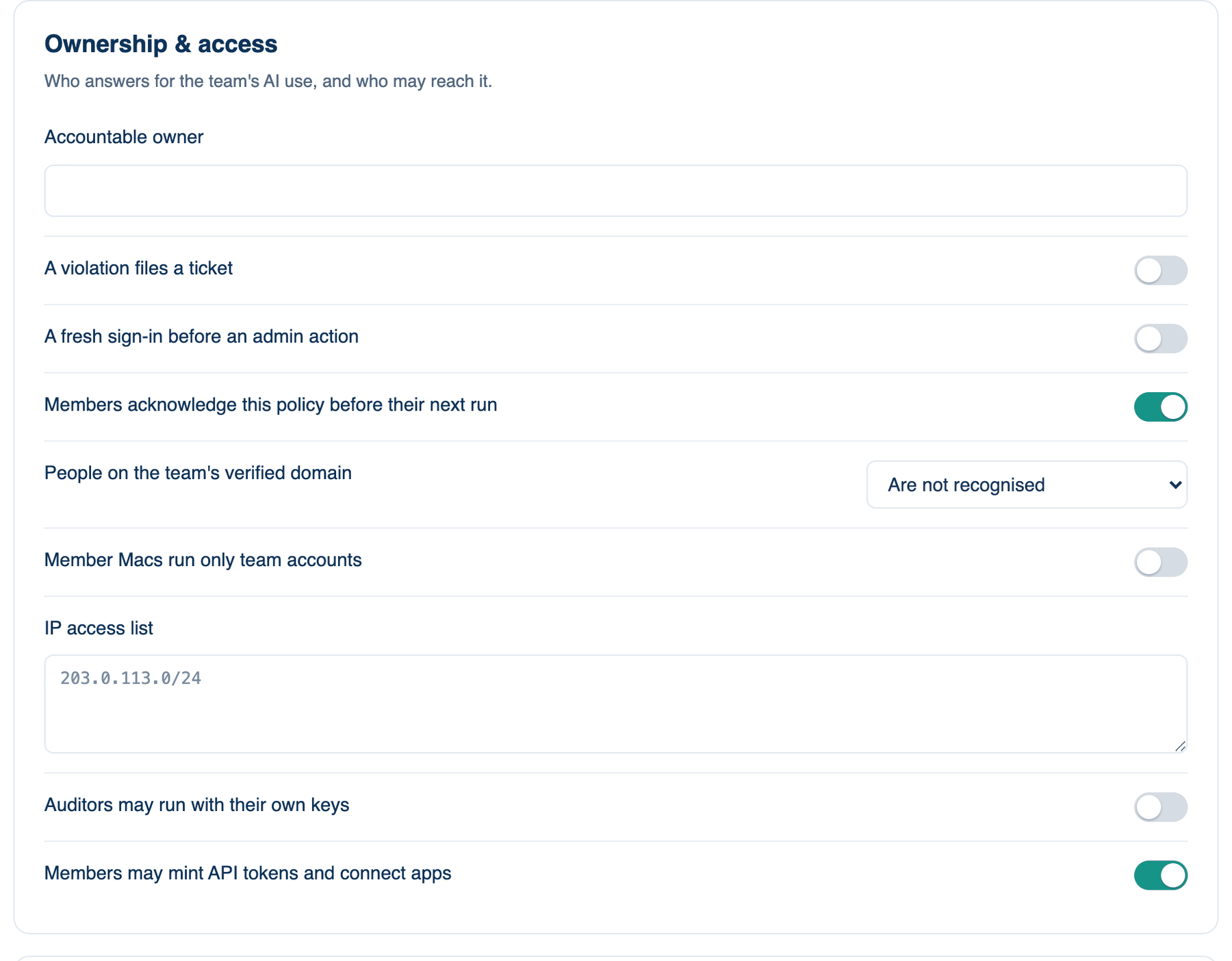
The first card of part 1, Policy, Access & Data. It says who answers for the team's AI use and who may reach it.
Where to find it. Mac: Settings → Account → Governance → 1 · Policy, Access & Data. Web: Settings → Governance (part 1). iPhone: Settings → Governance → Rules → 1 of 3. Owner or admin edits; everyone else reads.
Toggles save the moment you flip them; text and number fields save when you leave the field. A line indented under another appears only while its parent is on.
The policies, top to bottom
| Policy | Default | What it does | When to turn it on |
|---|---|---|---|
| Accountable owner | the team owner | Names the person who answers for the team's AI use. The audit webhook and the team export carry the name. | When the owner is a billing contact and someone else runs AI policy. |
| A violation files a ticket | off | A guardrail hit, a warden stop, a call refused by policy or by a project's forbidden list, or a member's budget stop files a high-priority bug in the Backlog, labelled risk and assigned to the accountable owner. At most one per cause per day. Off, events stay in the audit only. | When nobody reads the audit log, but everyone reads the board. |
| A fresh sign-in before an admin action | off | Role changes, deleting the team, tokens, outputs, secrets, SSO, the policy and the team export ask an owner or admin to have signed in recently, or to sign in again. No new factor, the same sign-in repeated. | When admin laptops are shared or left unlocked. |
| How fresh the sign-in has to be, in minutes | 15 | The window for the line above, 5 to 240. | Shorten it for a stricter audit. |
| Members acknowledge this policy before their next run | off | Each member reads the policy once per version and presses Understood; the click, date and version are audited. | When you must show members were told. |
| People on the team's verified domain | Are not recognised | Join automatically adds people who sign in with the verified domain; Wait for approval lists them for an admin. The domain is verified under Team → Access & Security. | When the whole company should land on the team. |
| Member Macs run only team accounts | off | A member's Mac refuses to start a run under an account outside the verified domain. | When people have personal accounts on work Macs. |
| CLI seats must be signed in with team accounts too | off | A Claude Code, Codex or Gemini seat signed in with an off-domain account does not run, and the member is told which account. A CLI on an API key, or one whose sign-in cannot be read, still runs. | When personal CLI subscriptions should stay off company code. |
| IP access list | empty, anywhere | CIDR ranges the web app may be used from, one per line. The Mac and the iPhone still sync from anywhere. | When company policy requires office or VPN access to the web app. |
| Auditors may run with their own keys | off | Off, an auditor reads everything and runs nothing. On, they may run their own discussions outside team projects with their own key or CLI, never the team's credit or keys. | When auditors need to reproduce a finding themselves. |
| Members may mint API tokens and connect apps | on | Off, only owners and admins can. Every member's tokens are listed under Team with a revoke button either way. | Turn it off when integrations should go through an admin. |
Further reading. NIST SP 800-63-4, Digital Identity Guidelines, NIST, 2025. NIST Role Based Access Control, NIST CSRC.