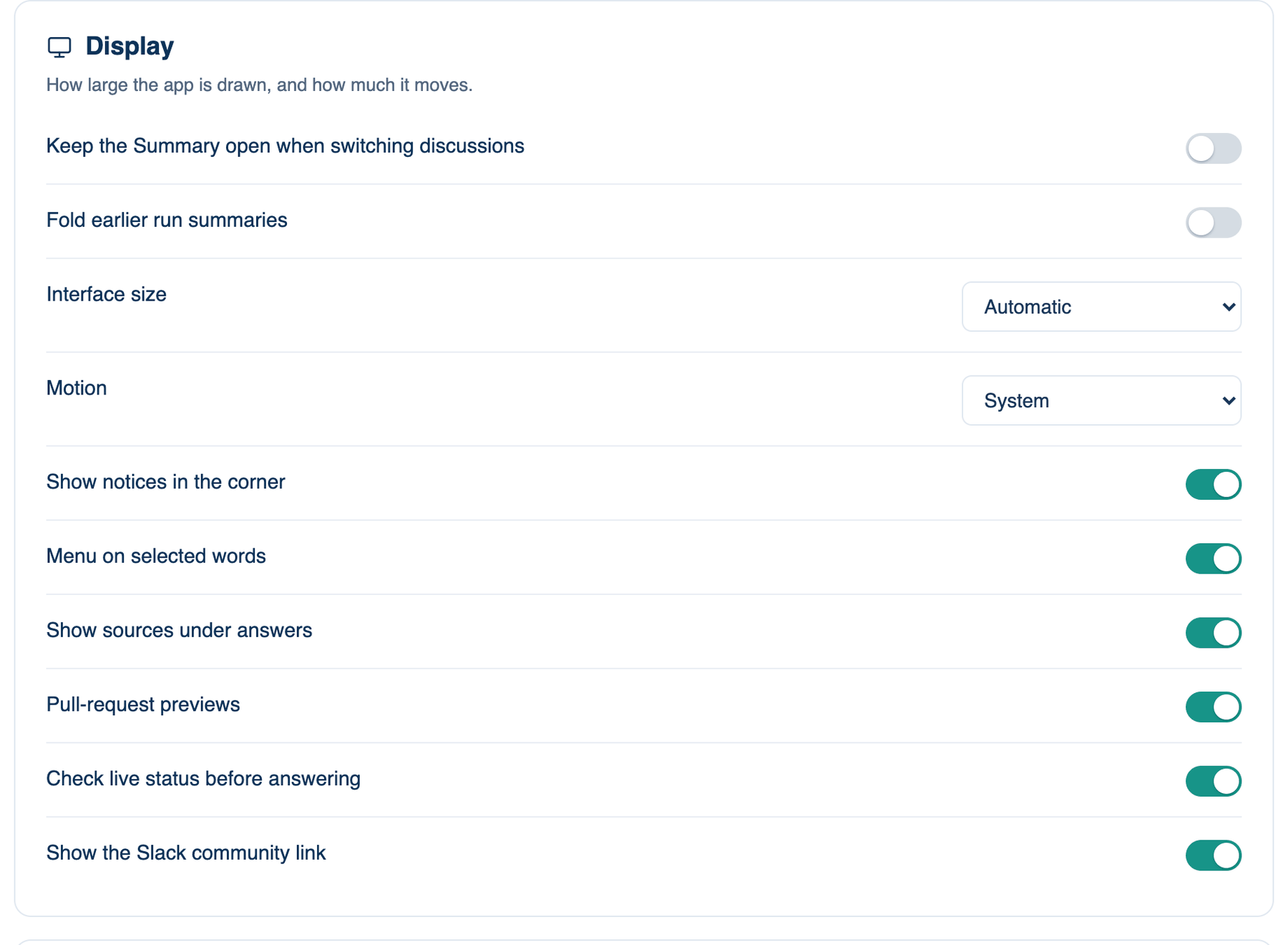
The Display group on Settings → This Mac → Appearance: how large the app is drawn, how much it moves, and what appears around the room's answers. The pane ends with a list of keyboard shortcuts.
Interface size
Where to find it. Mac only: Settings → This Mac → Appearance → Display → Interface size. Default: Automatic.
How to use it. Choose Automatic, Smallest, Smaller, Small, Default or Larger. Automatic reads the display the window is on, so a laptop panel and a large monitor each get a size that fits, including when you drag the window between them.
What changes. This is the size the app comes back to. ⌘+ and ⌘− change it until you quit, and ⌘0 ends that sooner.
Motion
Where to find it. Mac only: Settings → This Mac → Appearance → Display → Motion. Default: System.
What changes. Reduced cuts animation in streaming replies and interface transitions. System follows the Reduce motion setting in macOS accessibility.
The rest of Display
| Setting | Default | What it does | Change it when |
|---|---|---|---|
| Keep the Summary open when switching discussions | Off | The Summary opens from its button at the top. Normally switching closes it; on, it stays open on the new discussion. Web: Settings → Appearance → Display. | You read the Summary first in every discussion. |
| Fold earlier run summaries | On | A long discussion shows one line per finished run, with only the latest Summary open. Click a folded one to open it. | You compare runs side by side. |
| Show notices in the corner | On | What the room says about a run appears as cards in the top right, each closed with its cross. Off, they are lines in the discussion. Web: Settings → Appearance → Notifications. iPhone: Settings → Notifications. | You miss cards, or use a screen reader that follows the transcript. |
| Menu on selected words | On | Select words in a reply to Ask about this in the side chat or Quote in reply. Web: Settings → Appearance → Reading. | The menu gets in the way of copying. |
| Show sources under answers | On | A Sources button under an answer built on pages the room read: each page's site, title and date, and the searches. Shared with the web and iPhone. | You never open the list and want less under each answer. |
| Pull-request previews | On | A pull request or issue an answer names becomes a chip; rest on it to see state, title, author, size and checks, read with your own gh or glab. Shared. | You do not use GitHub or GitLab. |
| Check live status before answering | On | Asked whether something merged, deployed or finished, the room looks first (the pull request, CI, this Mac's tasks, your status checks). Shared. | Answers from memory are enough and you want them faster. |
| Show the Slack community link | On | Help and the account menu offer the community. Only shown when one is configured. Shared. | You do not want the link. |
Keyboard Shortcuts
A read-only list: ⌘N new discussion, ⌘K commands and discussions by name, Return to send and ⇧Return for a new line, ⌘, for Settings, Esc to close menus and this panel.
Further reading. Understanding SC 4.1.3 Status Messages, W3C WAI, on notices that do not steal focus. WCAG 2.2, W3C, 2023, success criterion 2.3.3 on motion.