One account covers the Mac app, LetThemChat on the web and the iPhone app. Your discussions, folders and plan travel through it. Your API keys for the providers do not: on the Mac they are encrypted on the machine and never part of any sync.
Profile
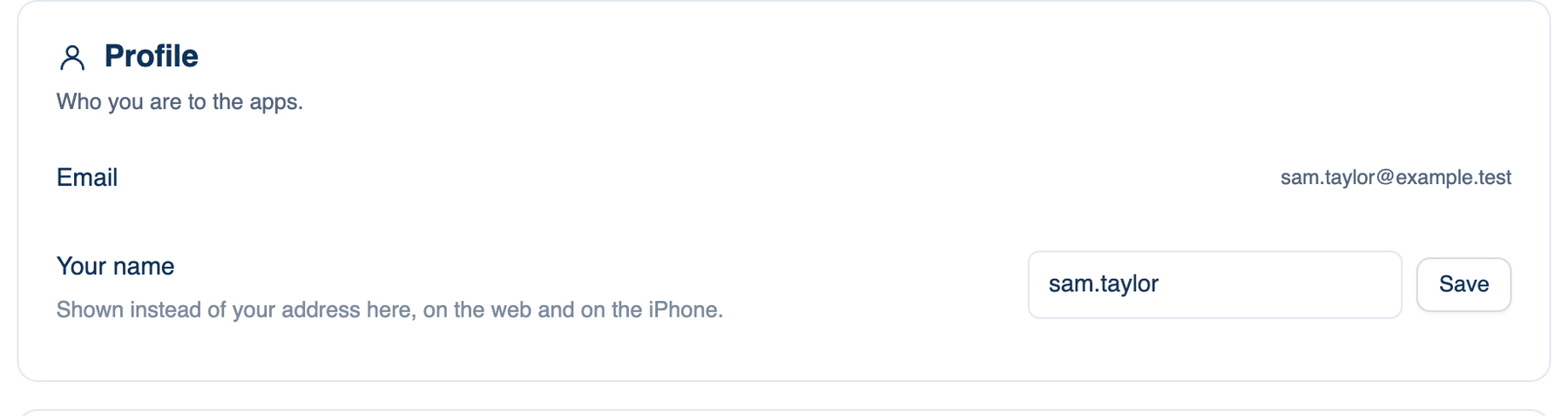
Your address and the name the apps call you.
Where to find it. Mac: Settings → Account → Account → Profile. Web: Settings → Account → Profile. iPhone: Settings → Account → Profile. Default: empty, or the name your sign-in provider sent.
How to use it.
- Type a name in Your name (up to 120 characters).
- Press Save. The web says the Mac and the iPhone pick it up on their next sync.
When to use it. Apple sends a name once or not at all, so an account made with Apple often has only an address. Set a name if you share discussions with a team and want to be recognisable in them.
What changes. Set: the apps show the name instead of your address. Empty: they show the address. The email itself cannot be changed here; it is the account.
Sign-in & Sync
Mac only. Four rows: who this Mac is signed in as, whether it is syncing, which server the account lives on, and the plan.
| Setting | Default | What it does | Change it when |
|---|---|---|---|
| Signed in as: Sign in… / Sign out | Not signed in | Sign in opens your browser at the sign-in page. Sign out leaves every session on disk where it is. | You switch accounts, or lend the machine |
| Sync: Sync now | Automatic | Pushes and pulls now instead of waiting | A discussion from the phone has not appeared yet |
| Server | letthemchat.com | The address of the server the account lives on | You run your own server. Type it before you sign in |
| Plan: Manage… | Your plan | Opens Settings → Billing → Plan & Billing | You want to change plan |
A machine whose administrator limits which servers it may use names the allowed ones when you try another.
What syncs and what does not
Synced across the three apps: your name, discussions set to Synced, folders and projects, room settings marked "Shared with the web and your iPhone", memories, skills, prompts and schedules. Not synced: provider API keys, the Mac's workspace folder, its sandbox and guardrail switches, and discussions set to Private live view or Keep on this Mac. The Mac's choice for new discussions is on the page about what this Mac shares.
Ways to sign in
The sign-in page offers Continue with Apple, Continue with Google and Continue with Microsoft, each showing the provider's account chooser every time, so a browser already signed in to one Google account does not quietly pick it. The iPhone app signs in through the same page.
Sign in With Company SSO is for companies that set up their own sign-in. You type your work address, and the server sends you to your company's identity provider. A team owner or admin connects it under Team → Access & Security → Company sign-in, once the team's domain is verified. It speaks OpenID Connect only. SAML is not offered; most directories that speak SAML also speak OpenID Connect. When the team requires company sign-in for its domain, an address on that domain is told to use it.
The app has no password or second factor of its own. Turn on multi-factor sign-in, ideally a passkey, at Apple, Google, Microsoft or your company's provider: that protects this account too.
Further reading.
- OpenID Connect Core 1.0 — OpenID Foundation, 2014.
- SAML V2.0 Core — OASIS, 2005.
- NIST SP 800-63-4 Digital Identity Guidelines — NIST, 2025.