Type / at the start of the composer to open the command menu. Keep typing to narrow it, then press Return. Your skills appear after the built-in commands as /name.
Mac commands, in menu order
| Command | What it does |
|---|---|
| /files | Browse and edit the workspace |
| /prs | Pull requests open on this repository |
| /diff | What the lead changed this session |
| /terminal | Every command run this session |
| /browser | Open the built-in browser |
| /simulator | iOS simulators: boot and screenshot |
| /plan | Plan mode: discuss, no tools |
| /auto | Auto: only dangerous commands ask |
| /manual | Manual: approve everything |
| /edits | Accept edits: files free, commands ask |
| /bypass | Bypass: never ask |
| /review | Review this branch against the trunk |
| /list | Work through a list, ending in a pull request |
| /compare | One task to several leads, ranked blind: /compare @claude @gemini task |
| /take | Apply one attempt of a comparison: /take A |
| /replay | Re-run recent agreed discussions on another seat, judged blind: /replay @claude 5 |
| /issue | Start from a GitHub issue: /issue 42 or its link |
| /new | Start a new session |
| /workspace | Choose the workspace folder |
| /open | Reveal the workspace in Finder |
| /files | Attach files or photos |
| /settings | Open Settings |
| /sync | Sync sessions with the web now |
| /stop | Stop the running session |
| /comment | A note for your team; the room does not answer it |
| /details | The ticket: description, labels, sources, people |
/files appears twice: the first opens the Files tool, the second attaches files. There is no /smart; choose Smart from the Permission chip.
Web and iPhone
The web menu has /comment, /new, /settings, /stop (while a run is going) and /details (on a ticket), then your skills. The iPhone suggests your skills as you type /.
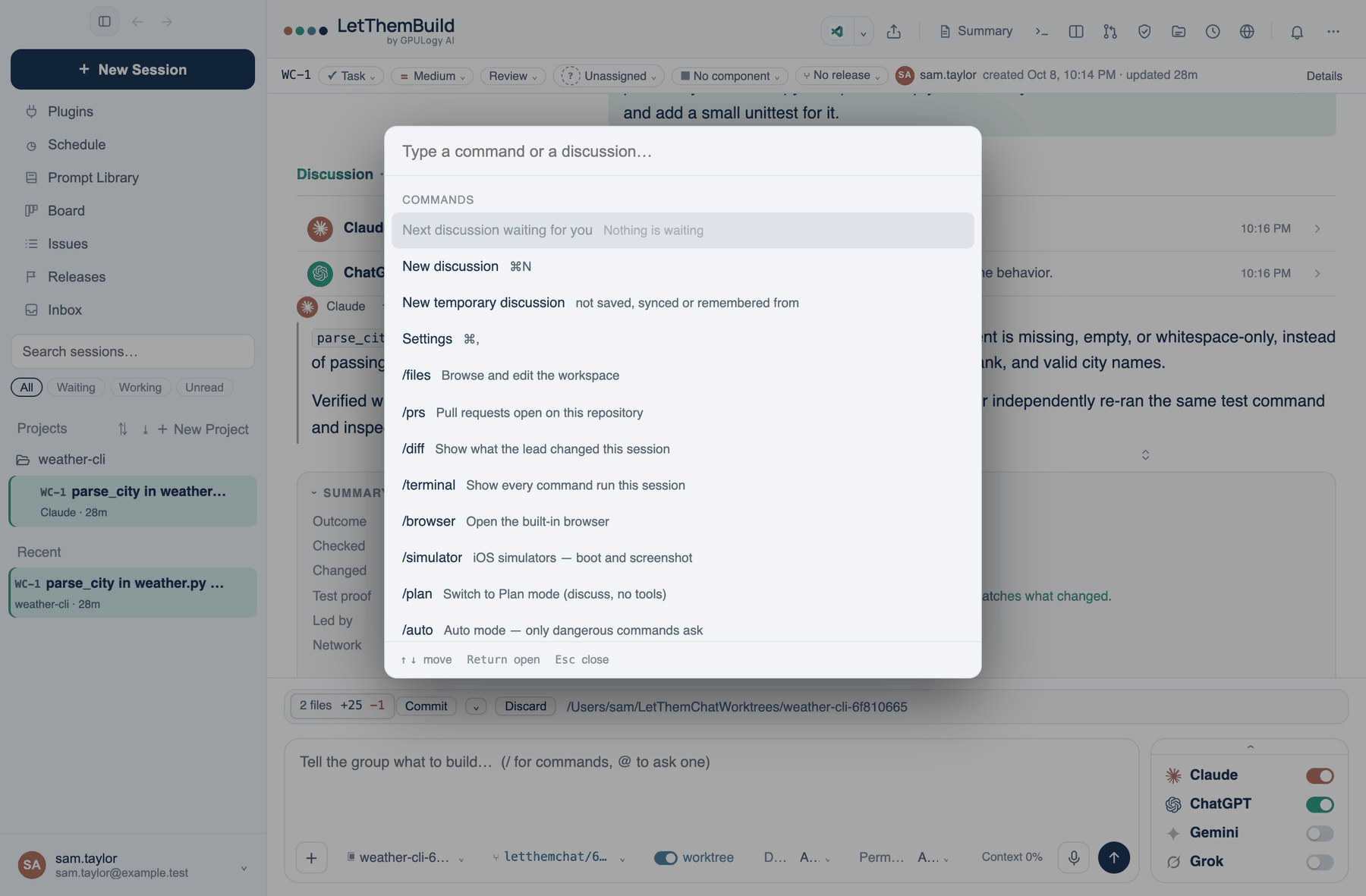
The command palette
Where to find it. Mac only: ⌘K.
How to use it.
- Press ⌘K. The first entry is Next discussion waiting for you, then New discussion, New temporary discussion and Settings.
- Type to filter. Every slash command is listed, and so is every discussion by its title.
- Press Return to run the highlighted entry.
On the web, ⌘K focuses the discussion search instead.
Keyboard shortcuts
⌘N new discussion, ⌘U attach, ⌘K palette, ⌘, Settings, ⌘F find in the discussion, Return and ⇧Return to send or add a line, Esc to close menus. The full table is on the keyboard shortcuts page.