The editor
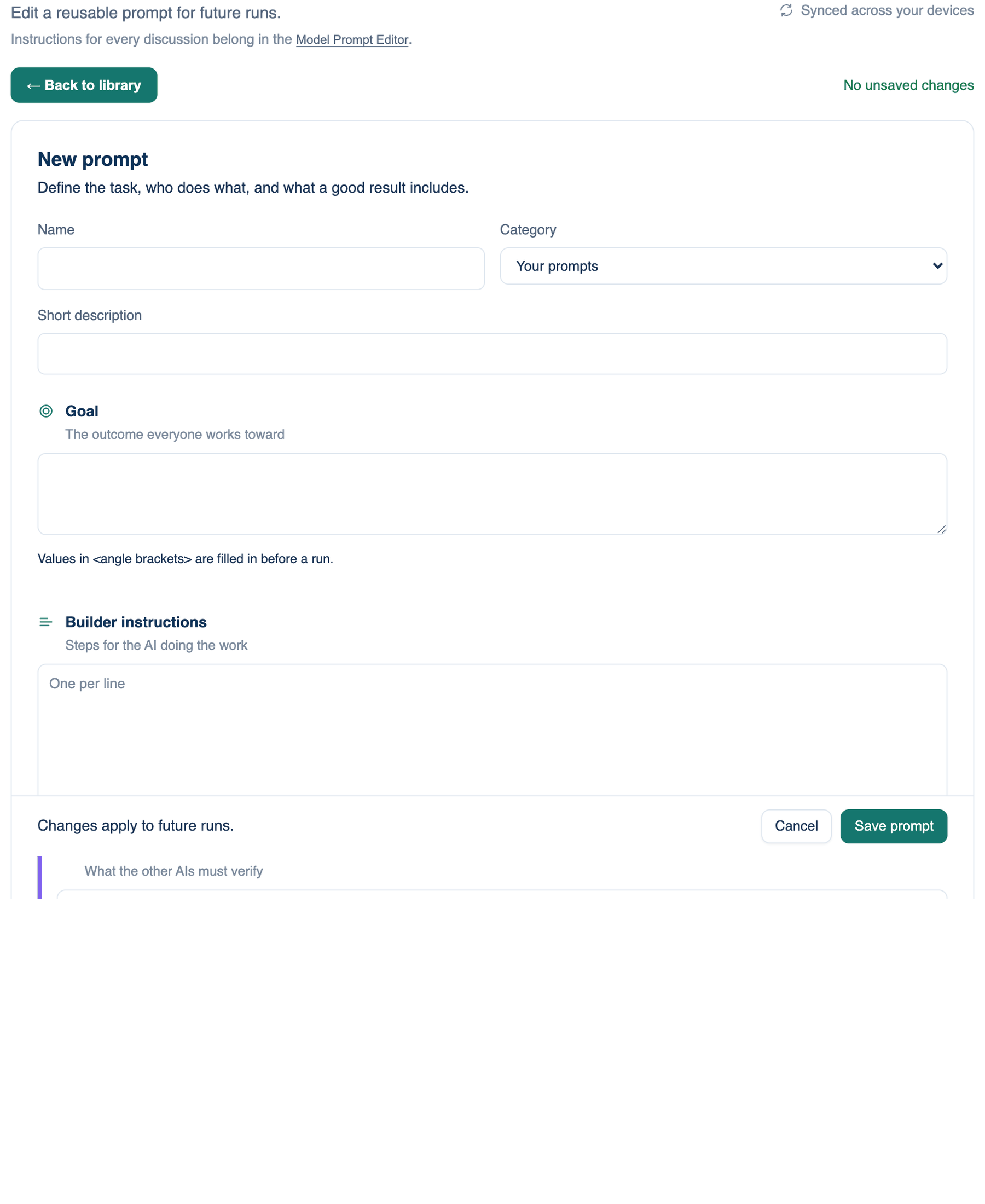
Where to find it. Any app: Prompt Library → + New prompt, or Edit on a card. The editor replaces the library until you leave it. At the top: ← Back to library, a save state (No unsaved changes, Unsaved changes, Saving…, Saved) and "Synced across your devices".
| Field | What goes in it |
|---|---|
| Name | Up to 80 characters |
| Category | A built-in category, Your prompts, or one of your own |
| Short description | Up to 240 characters, shown on the card |
| Goal | The outcome everyone works toward. Values in angle brackets are filled in before a run |
| Inputs the run needs | One field per angle-bracket value in the prompt. Shown only when there are any |
| Builder instructions | Steps for the seat doing the work, one per line, up to 12 |
| Reviewer checks | What the other seats must verify, one per line, up to 8 |
| Boundaries | What the prompt tells the seats to avoid, up to 8. Workspace guardrails are enforced separately |
| Expected output | What the run hands back at the end |
A value in angle brackets can carry a default or a hint after a dash, for example a branch name with "default: main". A count at the foot shows the prompt's length. Past 4,000 characters it can still be used now but cannot be scheduled.
How to use it.
- Fill in the fields. Numbering or bullets you type at the start of a line are taken off.
- Press Save prompt. "Changes apply to future runs": a discussion already started keeps the words it was sent.
- Cancel or Back to library with unsaved changes asks before throwing them away.
Editing a ready-made prompt or a starting point saves a copy under Your prompts, based on the original. The ready-made one is left as it was. On a copy, Show original opens the original, and Compare with original lists each part as changed or the same.
Your own categories
+ Category among the chips asks for a name and makes a category kept with your account. Select one of your own and Rename and Delete appear beside it. Deleting a category moves its prompts back to Your prompts; nothing is deleted with it. To file a prompt, use Move to in its ⋯ menu.
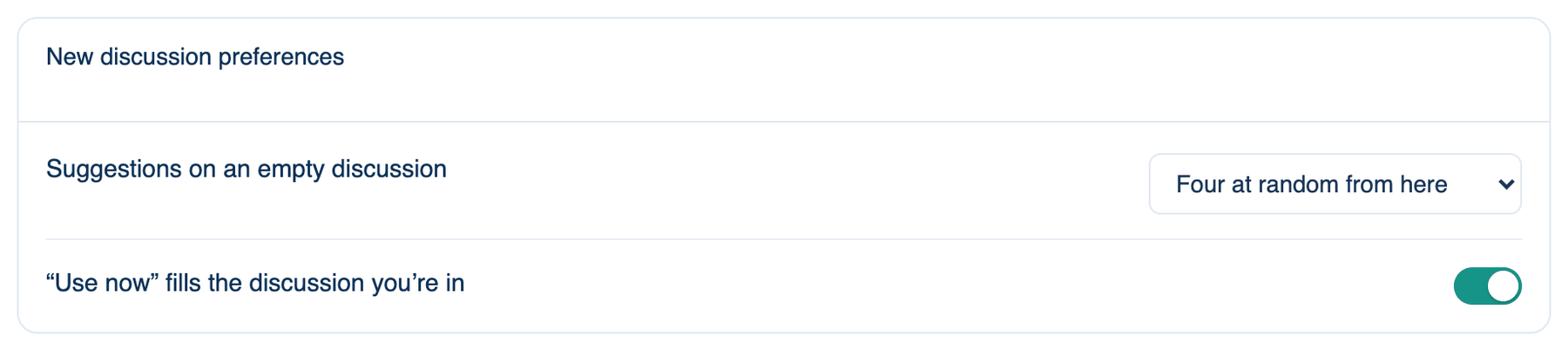
New discussion preferences
The card under the grid, always open. Both settings are shared by the Mac, the web and the iPhone.
| Setting | Default | What it does | Change it when |
|---|---|---|---|
| Suggestions on an empty discussion | Four at random from here | What a new, empty discussion offers: four prompts drawn from this library with a link to all of them, The four fixed starters, or None | You want the same starters every time, or a blank page |
| "Use now" fills the discussion you're in | On | Use now puts the prompt in the composer of the discussion in front, below what you typed; its folder and seats stay. Off starts a new discussion every time | You often press Use now while in the middle of something else |
The iPhone offers the suggestions setting but does not draw suggestion cards: an empty discussion there shows a link to the Prompt Library instead.
Further reading. A Systematic Survey of Prompt Engineering in Large Language Models — Sahoo et al., 2024.