The Prompt Library is one place for starting points, recurring tasks and your own prompts. It ships with about seventy ready-made prompts in eleven categories, from Daily rhythm and Build and release to Independent review and Lighter side, plus nine starting points. It is kept with your account, so the Mac, the web and the iPhone show the same list with your edits.
Where to find it. Mac: Settings → The room → Prompt Library, or the Prompt Library shortcut in the sidebar. Web: Settings → Prompt Library. iPhone: Settings → The Room → Prompt Library, or from the drawer.
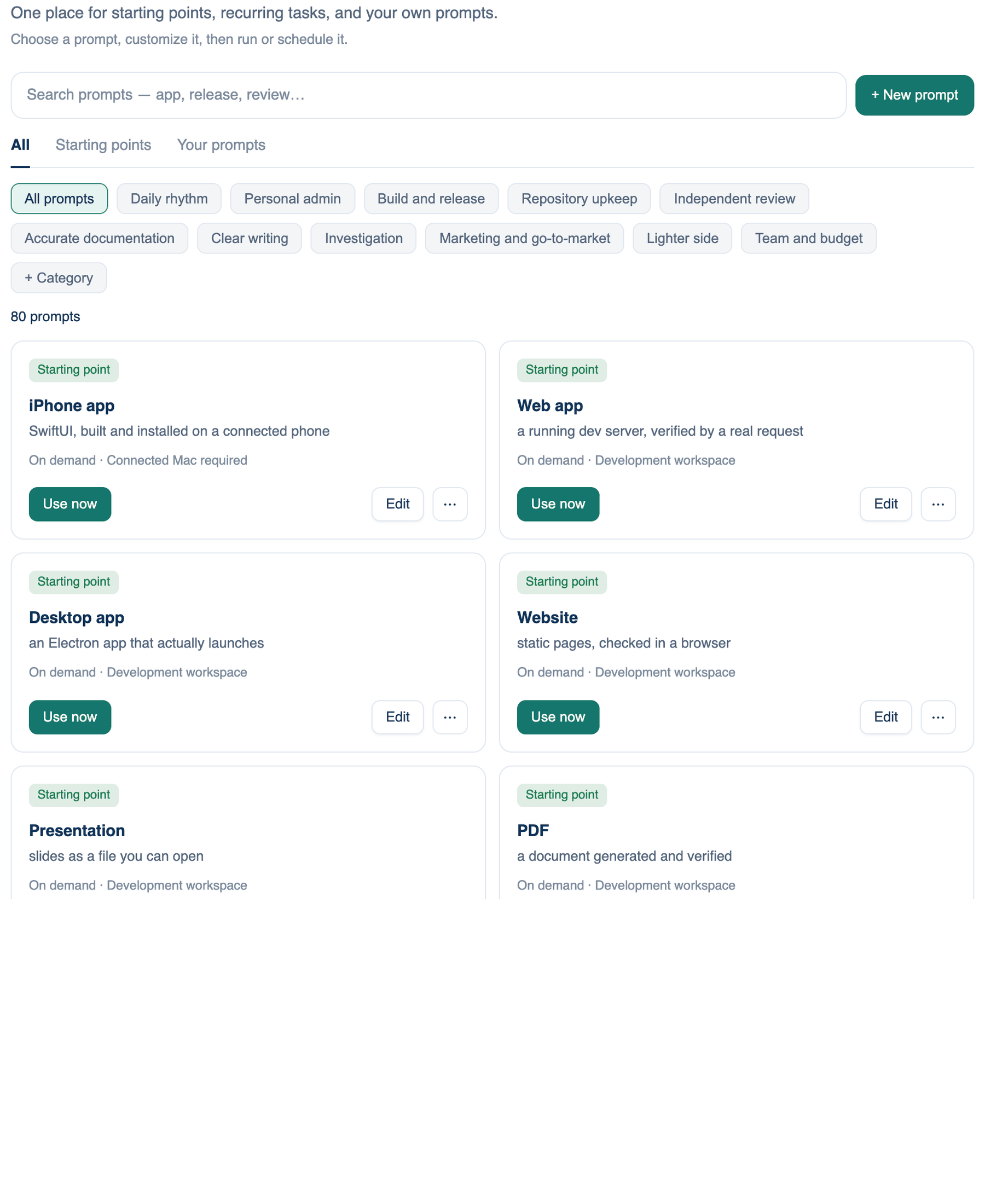
Finding a prompt
- Search prompts filters by name, description and text.
- + New prompt opens the editor on a blank prompt.
- The tabs All, Starting points and Your prompts pick which prompts show. On the iPhone they are a segmented control.
- The category chips narrow the list: All prompts, each category, and + Category to make one of your own. The chips are hidden on Starting points.
The cards
Each card has a tag (Starting point, Your prompt, or the category), the name, a one-line summary, and "Scheduled" when a schedule already uses it.
| Control | What it does |
|---|---|
| Use now | Puts the prompt in the composer, below anything you already typed. Nothing is sent until you press send |
| Schedule | Adds it to Schedule, paused, for you to look over and switch on. Not on starting points |
| Edit | Opens the editor. On a ready-made prompt or a starting point it opens your own copy |
| ⋯ | Copy the prompt; Show original and Compare with original on a copy; Move to a category; Share with my team; Take back from the team; Take out of my list, Delete copy or Delete |
Schedule from the Mac makes a schedule that runs on that Mac. From the web or the iPhone it makes one that runs on our servers, with the prompt's own cadence or weekdays at 09:00.
A ready-made prompt you take out of your list goes under Taken out, at the foot of the grid, with Put back beside it.
Some prompts contain values in angle brackets, such as the name of a branch. Fill those in the editor's Inputs the run needs once, and every later Use now and every scheduled run carries them.
When to use it. A task you run more than twice: a release check, a weekly summary, a code review with a fixed checklist.
When not to use it. Instructions every discussion should follow go in the Model Prompt Editor. A procedure you want to call by name mid-conversation is a better fit for a skill.
Team prompts
On a Team plan the library has a shelf named after your team. Share with my team in a card's ⋯ menu puts a copy of one of your prompts there, and every member sees it. The person who shared it, or a team owner or admin, can Take back from the team. For everyone else a shared prompt is read-only. Members whose role cannot share do not see the Share item.
Which prompt a discussion came from
A discussion started with Use now carries a small green pill at the top left of its transcript with the prompt's name. Click it to open that prompt in the library, which is the quickest way to change a prompt after seeing what it produced.
Further reading. Prompt Engineering Guide — DAIR.AI. Chain-of-Thought Prompting Elicits Reasoning in Large Language Models — Wei et al., 2022 (NeurIPS).