Settings → This Mac → Storage keeps attachments in two kinds apart, because only one of them is the app's to delete. It also shows the disk taken by discussion worktrees.
Where to find it. Mac only: Settings → This Mac → Storage. The web app and the iPhone keep no local files of this kind.
Pasted into the composer
A screenshot you paste, or text too long to sit in the composer, is written to a file so the room can read it again later. These are copies the app made, and the app never cleans them up on its own.
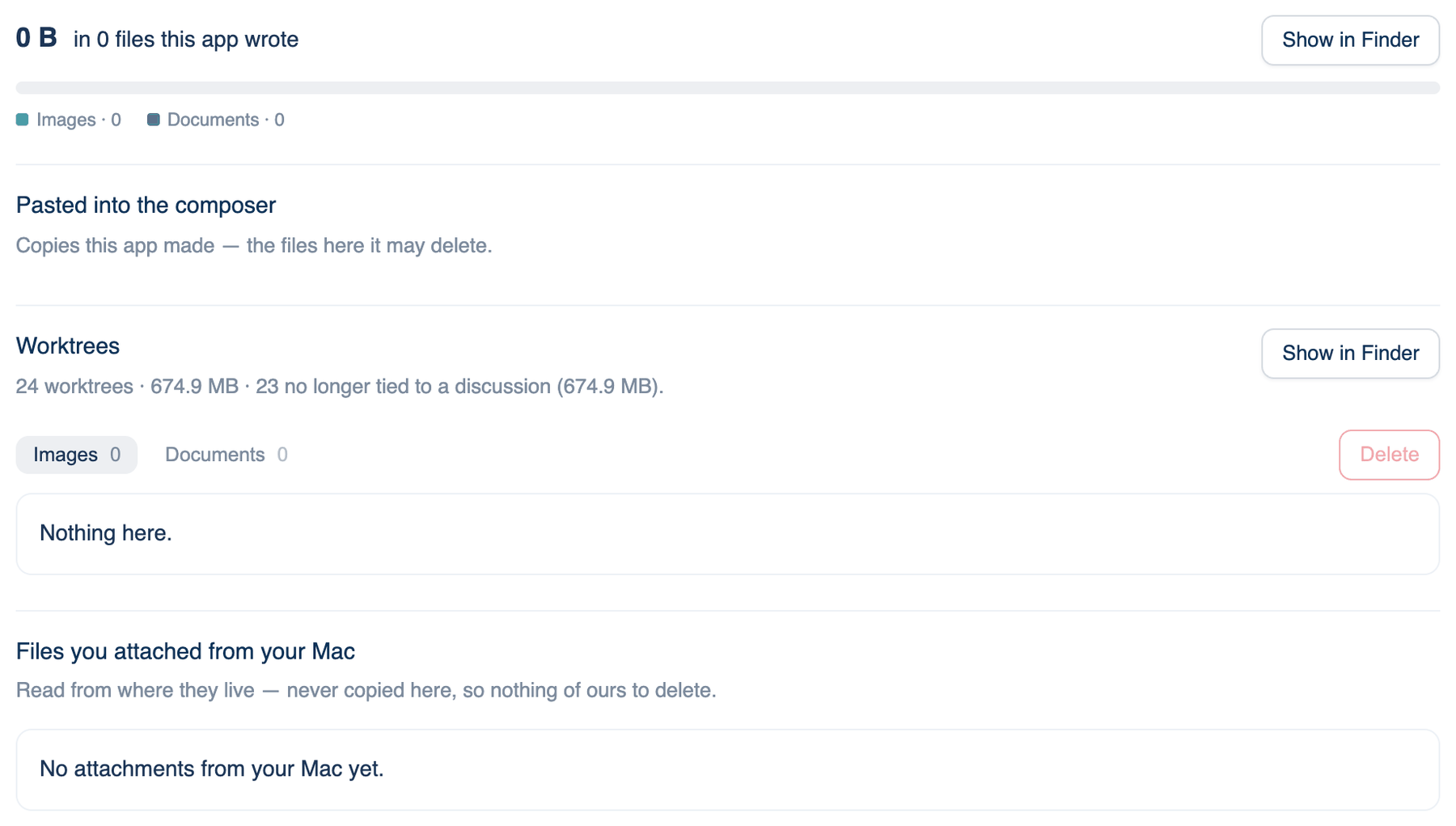
The top of the pane shows the total size, how many files, and a bar split into images and documents. Show in Finder opens the folder.
How to use it.
- Pick the Images or Documents tab. Each row shows the file, the discussion that uses it, its size and its age, largest first.
- Tick the files to remove. If some belong to discussions you have deleted, Select the N unused ticks those for you; their rows say "no longer used".
- Click Delete N. A confirmation shows the count and the space it frees.
When to use it. The pane shows hundreds of megabytes of old screenshots, or you deleted a discussion and want its pastes gone too.
When not to use it. On files a live discussion still uses. The room reads them back when you scroll up or ask about them, and a deleted paste cannot be restored.
What changes. The files are removed from disk. Files you attached from your Mac are not touched.
Files you attached from your Mac
Files you attached were never copied. The room reads them where they already live, so there is nothing of the app's to delete. Each row shows the file, the discussion, its size and a Show button that reveals it in Finder. A file moved or deleted since says so. To remove one, delete your own document in Finder, where you can see what else uses it.
Worktrees
Shown when discussions have worktrees of their own. Each is a full checkout of your project, with whatever its build put there, so they add up. The line gives the count, the total size, and how many are no longer tied to a discussion. Show in Finder opens the folder that holds them.
Worktrees are removed when the discussion they belong to is deleted. Deleting a worktree folder by hand while its discussion still exists breaks that discussion's checkout.
Further reading. git-worktree documentation, the Git project, on how linked checkouts are stored and pruned.