A side-by-side session asks every seat that is switched on the same question at the same time. Nobody reviews anybody: there is no agreement, no agreed answer and no Summary card. Each answer appears in its own column, so you can read the models against each other.
Starting one
Every new discussion opens on the four dots and one heading, a greeting for the hour, with three choices under it: In Turns, where the AI models take turns, review each other's responses and build a shared answer; Side-by-side, where they answer independently at the same time so you can compare; and Channel, a team feed with threads (its own page, linked below). The chosen card is ticked and outlined. Until you send your first message you can change your pick in any direction, Channel included; from that message on the discussion keeps that way of running (an In Turns one can still switch to Channel), and a small label, Sequential or Side-by-side, stays in view (the Mac's title bar, above the transcript on the web, under the title on the iPhone). The card you pick applies to that discussion only: every new discussion, on every app, starts on In Turns.
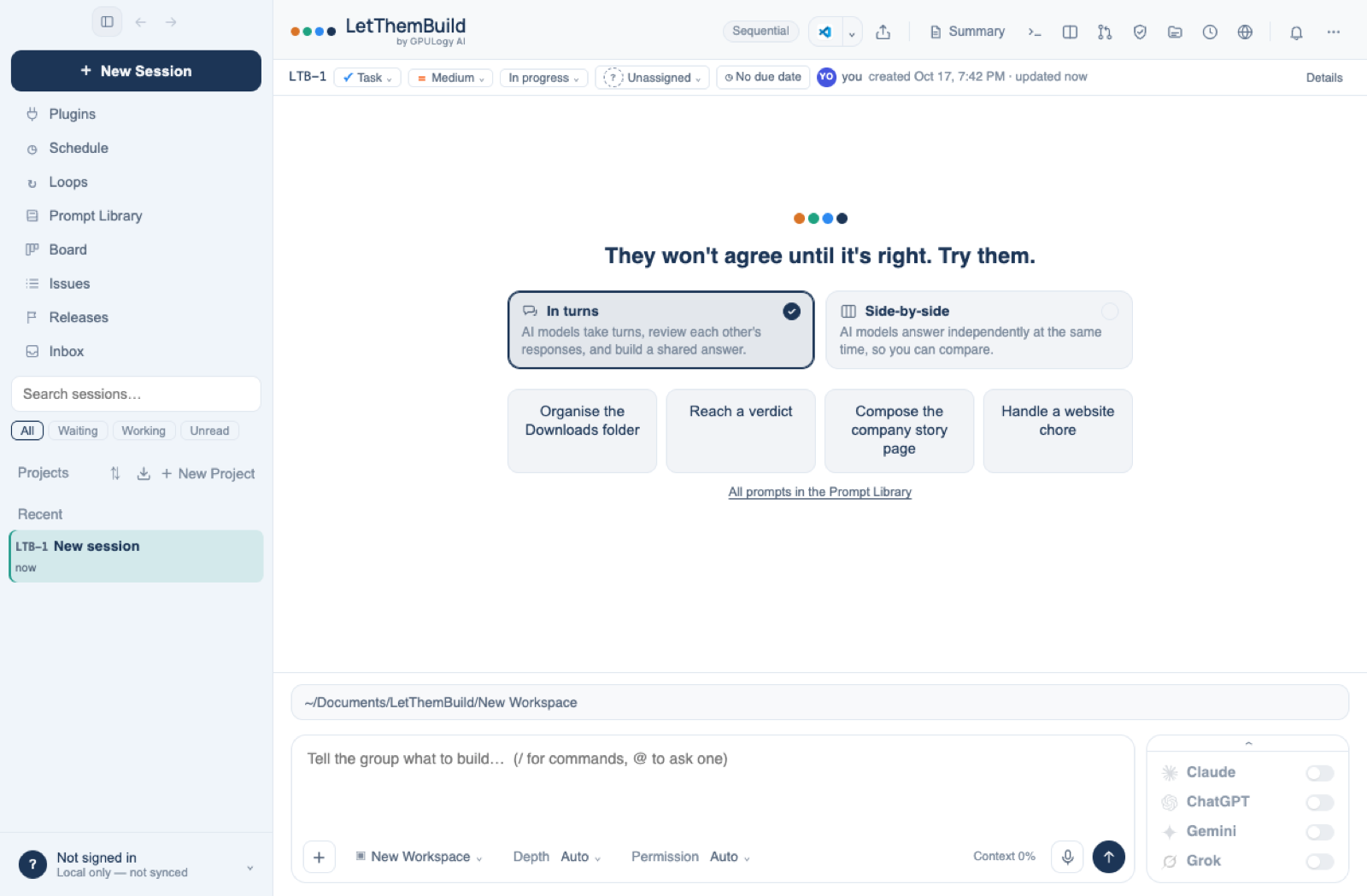
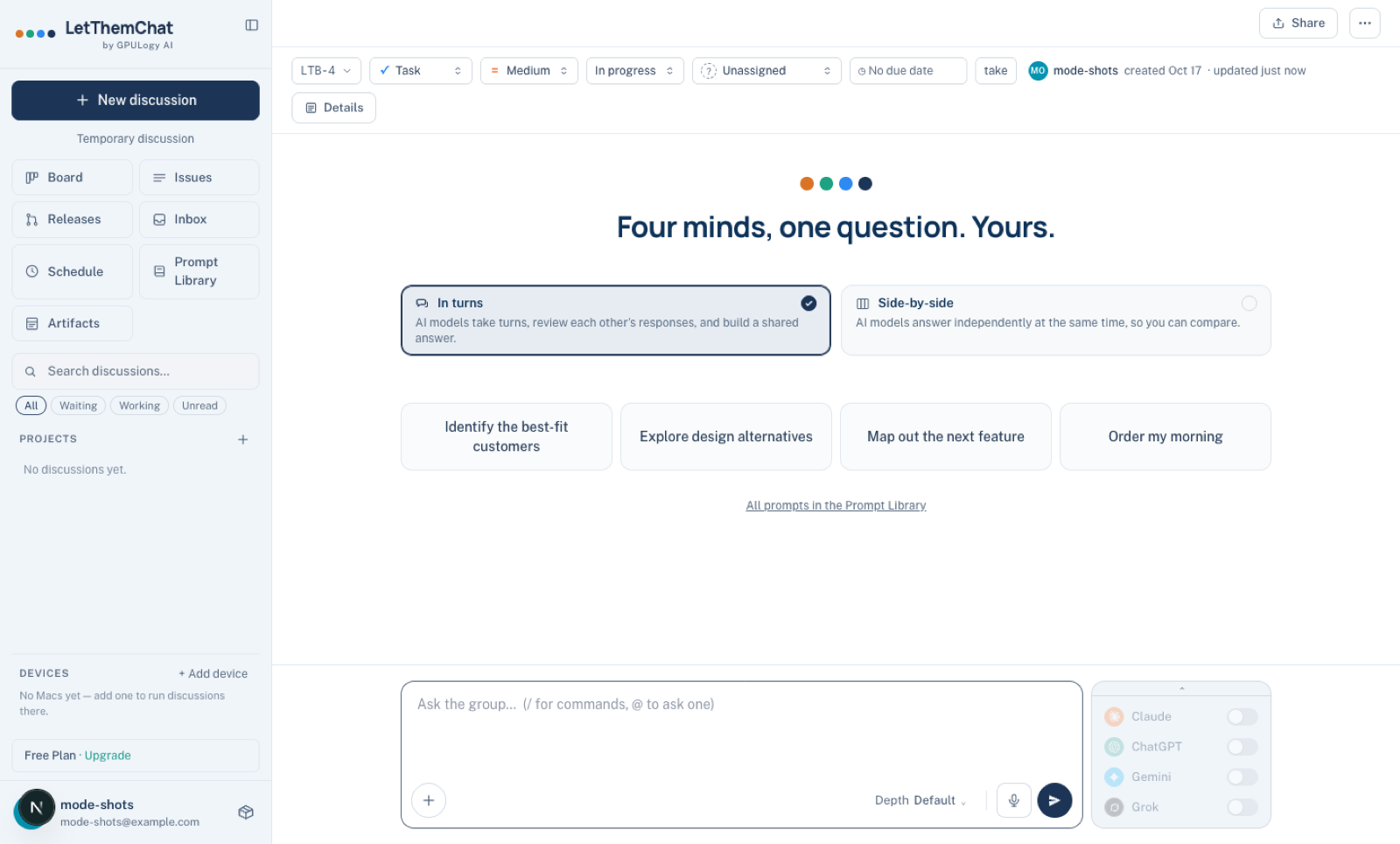
To start side by side without picking the card, a project's menu offers New Side-by-Side Session as a shortcut: right-click the project on the Mac, hover it and click + on the web, or use the project row's + or a long press on the iPhone. The discussion is filed in that project.
Asking
Type a question and send it. Every seat switched on in the room answers at once, and the columns follow the seat switches: turn a seat off and the next question has one column fewer. To ask a single seat, start with its handle, for example @claude. The composer says Ask all of them, or @one… as a reminder.
Answers are headed only N answers · same question. A column shows the seat's mark and name, its answer, and Writing… while it streams or Done with the seconds it took. On a narrow screen the columns become cards you swipe between.
Each answer carries the usual reply bar and what it cost, and their cost breakdown sits folded under them. Nothing reviews the answers: to go further, ask again.
Compare
Compare, above the columns, asks the room's lead to read these answers and write three short paragraphs: Shared view, Different bets and Still unanswered. It does not pick a winner. The comparison appears under the answers, with its own reply bar and cost, and is billed like any call the lead makes. A lead that runs through a command-line tool can write it too. Press Compare again for a fresh one; the newest is shown. On the iPhone the comparison is the one the server wrote.
Combine
Combine, beside Compare, asks the lead for one complete answer made from these answers, to use instead of reading every column. An item several seats gave appears once, with who gave it, for example "given by Claude, ChatGPT and Gemini". An item only one seat gave is kept and marked as that seat's alone. Sources each seat cited stay with their item. Where the seats disagree, on a number, a reference, a grading or a quotation's wording, the item says so and gives each version rather than picking one. The lead adds nothing the answers do not contain, and keeps their structure, such as a numbered list, in full.
The combined answer appears under the answers with a Combined answer label, its own reply bar and cost, billed like Compare. One set can carry both. Press Combine again for a fresh one. To hide the button, turn off Show Combine in side-by-side in Settings; the choice is shared across your apps.
Saving as a picture
The camera button opens Save as Picture: the question, every answer side by side, and the comparison and combined answer if there are any, as tall as the longest answer. Untick Include comparison or Include combined answer to leave either out, then choose Save PNG or Copy image.