Two ways to reach the room without opening its window first. Both are on Settings → This Mac → General.
Launcher
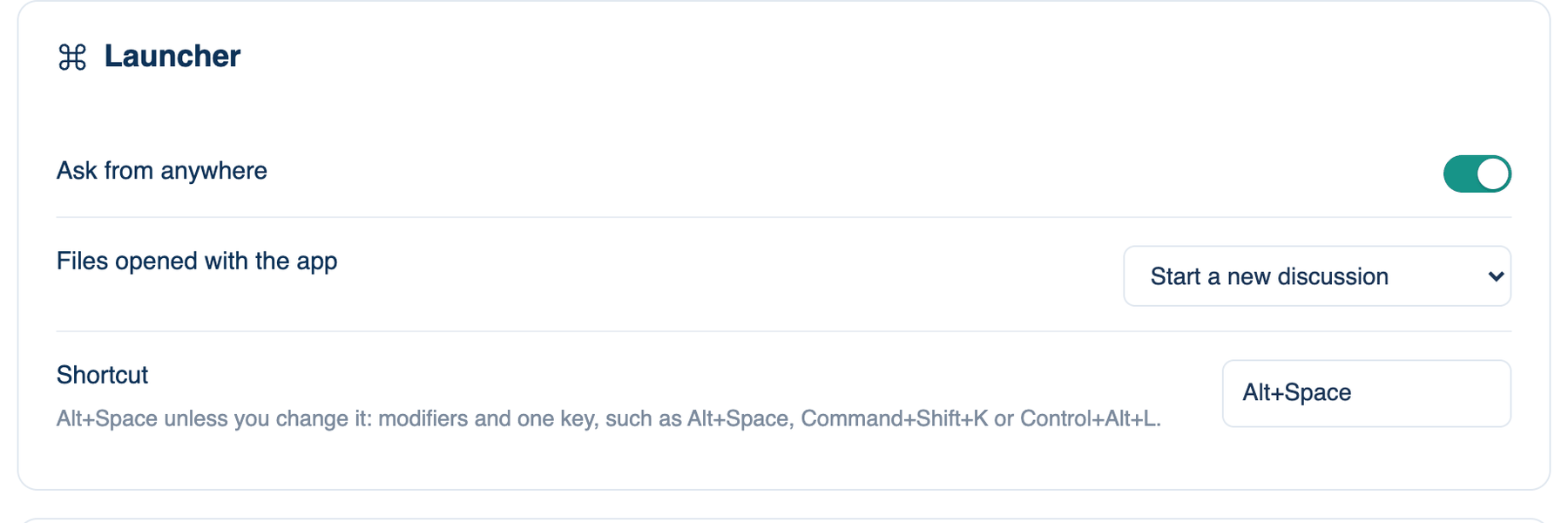
A bar that opens over whatever app you are in. Type a question, add a file with + File, or click Capture to grab part of the screen (drag a region, or press Space for a whole window). Return starts a discussion in the current workspace and brings the main window forward. Esc closes the bar.
Where to find it. Mac only: Settings → This Mac → General → Launcher. The menu bar item opens the bar too. Default: on, on Alt+Space.
How to use it.
- Leave Ask from anywhere ticked.
- In Shortcut, type modifiers and one key, such as Command+Shift+K or Control+Alt+L. If another app already owns the combination, the note under it says so.
- Press the shortcut from any app.
When to use it. A question while you are reading a page or a log in another app, or a screenshot of an error you want the room to see.
When not to use it. When the question belongs to a discussion you already have open. The launcher always starts a new one.
What changes. Off: the shortcut is released and only the menu bar item opens the bar.
| Setting | Default | What it does | Change it when |
|---|---|---|---|
| Files opened with the app | Start a new discussion | Files from Finder's Open With, the Dock icon, a Shortcut or a share action arrive attached and waiting in the composer. Nothing is sent until you press send. Add to the open discussion puts them in the one on screen instead. | You usually share files into work already under way. |
On the iPhone the same choice is Settings → Appearance → Shared into the app, default A new discussion.
iMessage
Message this Mac from your phone and get the room's answer back as a reply. Each contact is one discussion until they send /new.
Where to find it. Mac only, and only on macOS: Settings → This Mac → General → iMessage. Default: off.
How to use it.
- In Contacts, enter phone numbers with the country code, or iMessage email addresses, one per line or separated by commas. Your own number is the usual one.
- Click Full Disk Access… and add LetThemBuild, so it can read Messages.
- Tick Answer iMessages from listed contacts. The first reply asks macOS for Automation permission for Messages; Automation… opens that pane if you missed it.
When to use it. Away from your desk with the Mac at home, wanting a quick answer or a status check.
When not to use it. If you are not comfortable granting Full Disk Access. It gives the app access to your whole Messages history, and to far more than Messages. Remote control from the iPhone app is the narrower route.
What changes. On: messages from listed contacts are answered. Nothing from anyone off the list is read. The Mac must be awake with the app open.
Further reading. App Sandbox, Apple Developer Documentation, on what macOS privacy permissions grant.