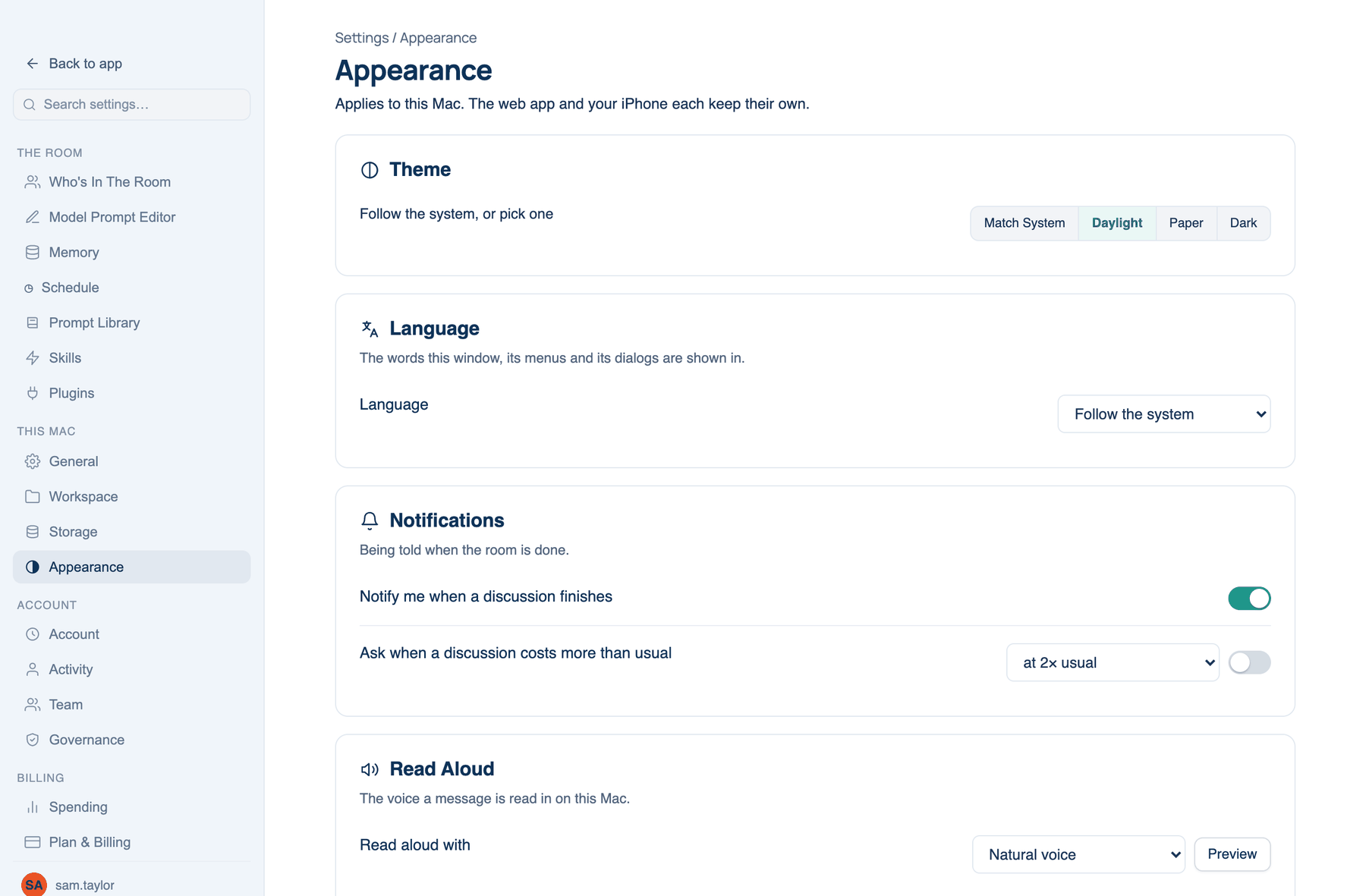
Settings → This Mac → Appearance applies to this Mac only. The web app and your iPhone each keep their own, so a theme picked here does not change them.
Theme
Where to find it. Mac: Settings → This Mac → Appearance → Theme. Web: Settings → Appearance → Theme. iPhone: Settings → Appearance → Theme. Default: Daylight on the Mac, Light on the web and iPhone.
How to use it. Click one of four choices. The ? beside each says what it means.
| Choice | What you get |
|---|---|
| Match System | Daylight by day, Dark by night, as macOS decides |
| Daylight | White page, navy text, the same look as letthembuild.com |
| Paper | The earlier light theme: cream page, serif headings |
| Dark | Always dark |
The web and iPhone offer Match system, Light and Dark.
Language
The words in this window, its menus and its dialogs. What you and the models wrote is never translated.
Where to find it. Mac: Settings → This Mac → Appearance → Language. Web: Settings → Appearance → Language. iPhone: follows the iPhone's language. Default: Follow the system on the Mac, English on the web.
How to use it. Choose Follow the system, English or Español. The window reloads in the new language.
Notifications
| Setting | Default | What it does | Change it when |
|---|---|---|---|
| Notify me when a discussion finishes | On | A system notification when the room agrees or stops, for runs that take minutes while the window is behind something else. Web: Settings → Appearance → Notifications. iPhone: Settings → Notifications. | You watch every run, or rely on the corner notices. |
| Ask when a discussion costs more than usual | On, at 3× usual | A notice in the corner while a run is still spending, with a way to stop it or keep going. "Usual" is the middle cost of your last 40 priced discussions. It asks once per discussion, only past 25¢, and only while you are there. Choose 2×, 3× or 5×. | Your costs vary a lot, and it asks too often. Set a ceiling under Billing → Spending for a hard limit. |
Read aloud with
The voice a message's play button uses on this Mac.
Where to find it. Mac: Settings → This Mac → Appearance → Read Aloud. Web: Settings → Appearance → Notifications. iPhone: Settings → Voice, which also has a voice per seat and a speed slider. Default: Natural voice.
How to use it. Choose Natural voice or This device's voice, then Preview: each seat says one sentence.
When not to use it. Natural voice reads with a neural voice on our server and costs under 2¢ a minute from your credit. The device's voice is free and works offline.
Further reading. Web Content Accessibility Guidelines (WCAG) 2.2, W3C, 2023, on audio a person can control. Understanding SC 2.2.4 Interruptions, W3C WAI.