The last group on Settings → This Mac → General is Logs & Diagnostics: what ran, what went wrong, and which build this is.
Take logs from a running app
The seats can already read the Terminal pane, which covers a dev server the room started itself. This switch covers the rest: an app on a phone, in a container, on a staging box, or in a terminal the room never opened. You get one line of shell to paste into that app's environment, and everything it posts there, the seats can read with their app_logs tool.
Where to find it. Mac only: Settings → This Mac → General → Logs & Diagnostics. Default: off at every launch. The note reads "Off. Nothing is listening."
How to use it.
- Turn on Take logs from a running app.
- Click Copy the line. It is a curl command that reads from its input, so pipe your app's output into it:
npm start 2>&1 |followed by the line. - Ask the room about the failure. Seats call app_logs to read what arrived.
When to use it. A bug that only shows on a device or a server, where the seats would otherwise be guessing from your description.
When not to use it. When the logs carry customer data or credentials you would not paste into a chat. Logs are the likeliest place in the whole product for a password to turn up, and what the seats read goes to their providers.
Because it listens on this Mac only, output from a phone or a remote box has to be piped from a command run here, such as ssh or a device log tool.
What changes. On: the app listens on this machine only (loopback), accepts posts only with the token in the line you copied, and keeps the last few thousand lines in memory. Nothing is written to disk. Off, or on quit: the listener stops and the lines are gone.
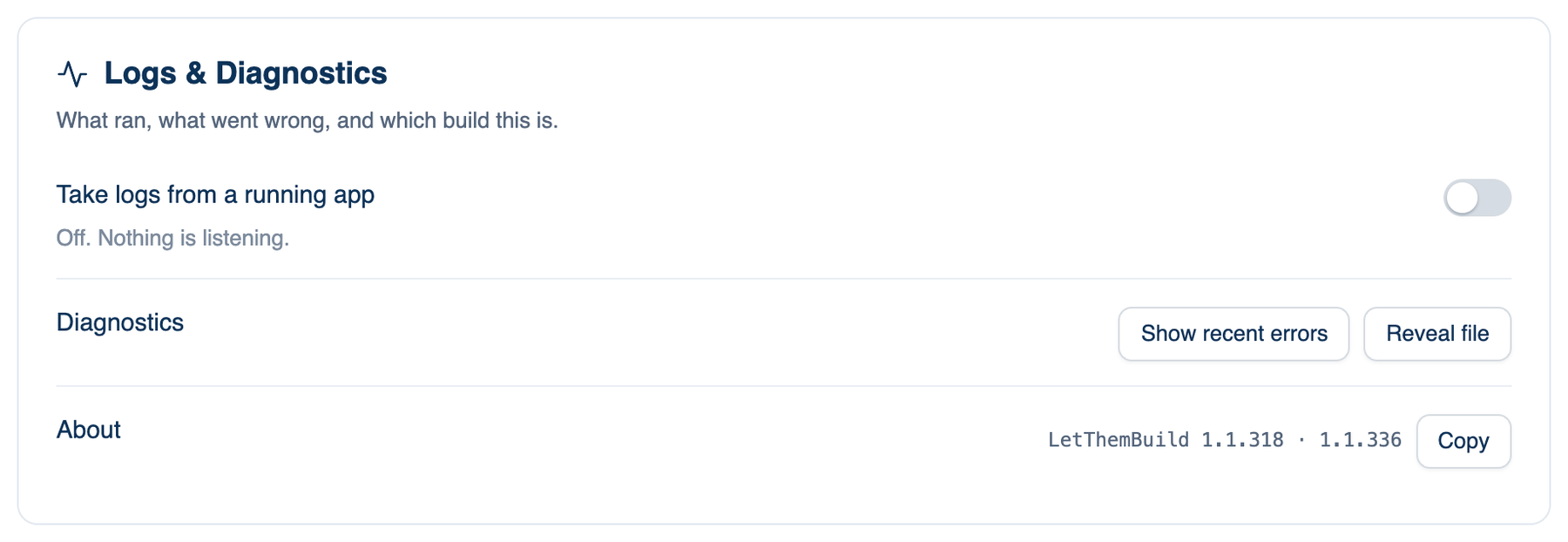
Diagnostics
The app swallows many errors on purpose, so that one bad file or one unreachable server does not take the room down. Every one of them, and any crash, is written to a log file.
Where to find it. Mac only: Settings → This Mac → General → Logs & Diagnostics → Diagnostics.
How to use it.
- Click Show recent errors. The log opens under the row; Hide closes it.
- Click Reveal file to see the file in Finder, to attach to a support message.
When to use it. Something misbehaved and told you nothing. If the log says nothing has been logged since it was last rotated, the app did not hide a failure.
About
The version and the exact build: the commit it was made from, whether that tree had uncommitted changes, and when it was built. Two copies can share a version number, and this line tells them apart. Copy puts it on the clipboard for a bug report.
Further reading. Guide to Computer Security Log Management, NIST SP 800-92, Kent and Souppaya, NIST, 2006, on what belongs in a log and how to protect it.