Roles
Every member has one role. The owner made the team and pays for it.
| Role | Can do |
|---|---|
| Owner | Everything. The only one who changes a member's role or limits, manages seats, or deletes the team |
| Admin | Invites and removes members, edits Governance, Access & Security, shared keys, integrations, audit outputs, and pauses runs |
| Auditor | Reads the inventory, results, device roster and rollout status. Runs nothing on any app unless Governance turns on "Auditors may run with their own keys" |
| Member | Uses the team's credit and shared projects, reads the policy, adds personal run secrets, asks for more budget |
Every role sees the Members table, Keys & Secrets (names only), Usage & Reports and Advanced. Owners and admins also see Access & Security, Integrations and Audit & Logs. Under Governance, members and auditors read every rule but cannot change them.
Manage a member
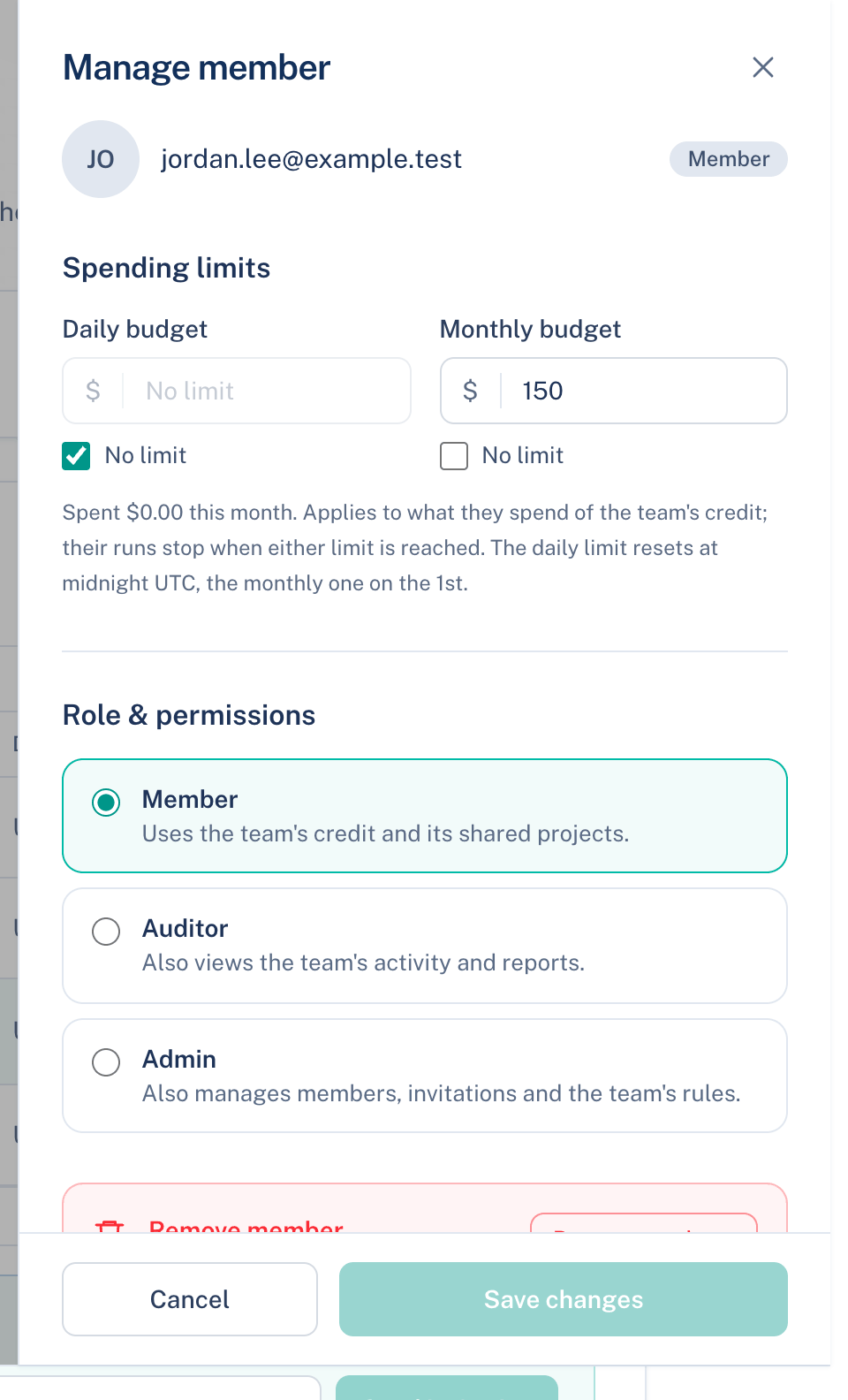
Owner or admin. Opens a side panel for one non-owner row.
Where to find it. Web: Settings → Team → Members → Manage. Mac: Settings → Account → Team → Members → Manage. iPhone: Settings → Account → Team, tap the member.
How to use it.
- Set Daily budget (resets at midnight UTC) and Monthly budget (resets on the 1st) in US dollars, or tick No limit. Default: no limit.
- Choose Member, Auditor or Admin.
- Press Save changes. Admins see limits and role greyed out; only the owner saves them.
- Remove member… takes them off the team, after a confirmation.
What changes. A member with a budget is stopped when it runs out, and they and the owner get an email at 80% and 100%. Under each address the table shows spend today and this month, and the date they run out at this pace. A member who hits a limit can press Request more budget under Usage & Reports.
Manage seats
Owner only, on the Team plan. Manage seats ↗ on the web, Change seats on the Mac. You set the number of seats; the change is billed per seat at $40 a month, prorated. Pending invitations hold seats too.
Leave the team
Everyone but the owner: Settings → Team → Advanced → Leave team on any app. You keep your own discussions, lose access to the ones shared with the team, and your usage stops being billed to the owner. The owner deletes the team instead, on the web. Deleting releases every seat and returns shared discussions to their authors; nothing is destroyed.
Tickets-only mode
Governance → Projects & spending → Every discussion belongs to a team project. Off by default. When on, a discussion can only start inside a project shared with the team, for everyone including the owner, on every app. Trying elsewhere shows the reason and the team's projects as buttons, so you can pick one. Existing private discussions stay readable but cannot continue until moved into a project. Use it when every dollar has to land on a project and a ticket.
Further reading.
- Role Based Access Control — NIST CSRC.