When a seat wants to do something the mode does not cover, a card appears in the discussion. Nothing happens until you answer it or it times out.
The card
A command or browser action offers Allow, Always and Deny. Always remembers that command for this project, matched on how it starts, so npm test covers npm test -- --watch but never npm test; git push. A card for a project's instruction files offers Always here. A card raised by another discussion names it, and the name opens it.
Sandbox cards differ. A folder outside the workspace or a host not on the list offers Allow for this discussion, Always allow and Deny; allowing runs the command again inside the sandbox with that one grant. A tool that needs its own sandbox (SwiftPM, Xcode, Codex) offers Run outside once, Always for this workspace and Deny, and Always is confirmed a second time, because any command could print that message. Writing outside the workspace offers Move workspace here, Allow once and Deny.
Some paths are never offered as a grant, whatever a command prints: shell start-up files, LaunchAgents and Preferences, editor settings folders, the whole of Application Support, and every credential store.
The order of checks
For each call the lead makes, the first of these to answer decides:
- Your Before every tool hook, which can refuse.
- Protected instruction files, which ask in every mode.
- A remembered Always for this command in this project.
- Your rules with patterns.
- The permission mode, then Auto's own switches.
- The Smart judge, in Smart.
- A beforeApproval hook.
- An editor that started the run asks you in the editor.
- Nobody present: refused, and you are told once to use Auto or Bypass for automations.
- The card.
How long a card waits
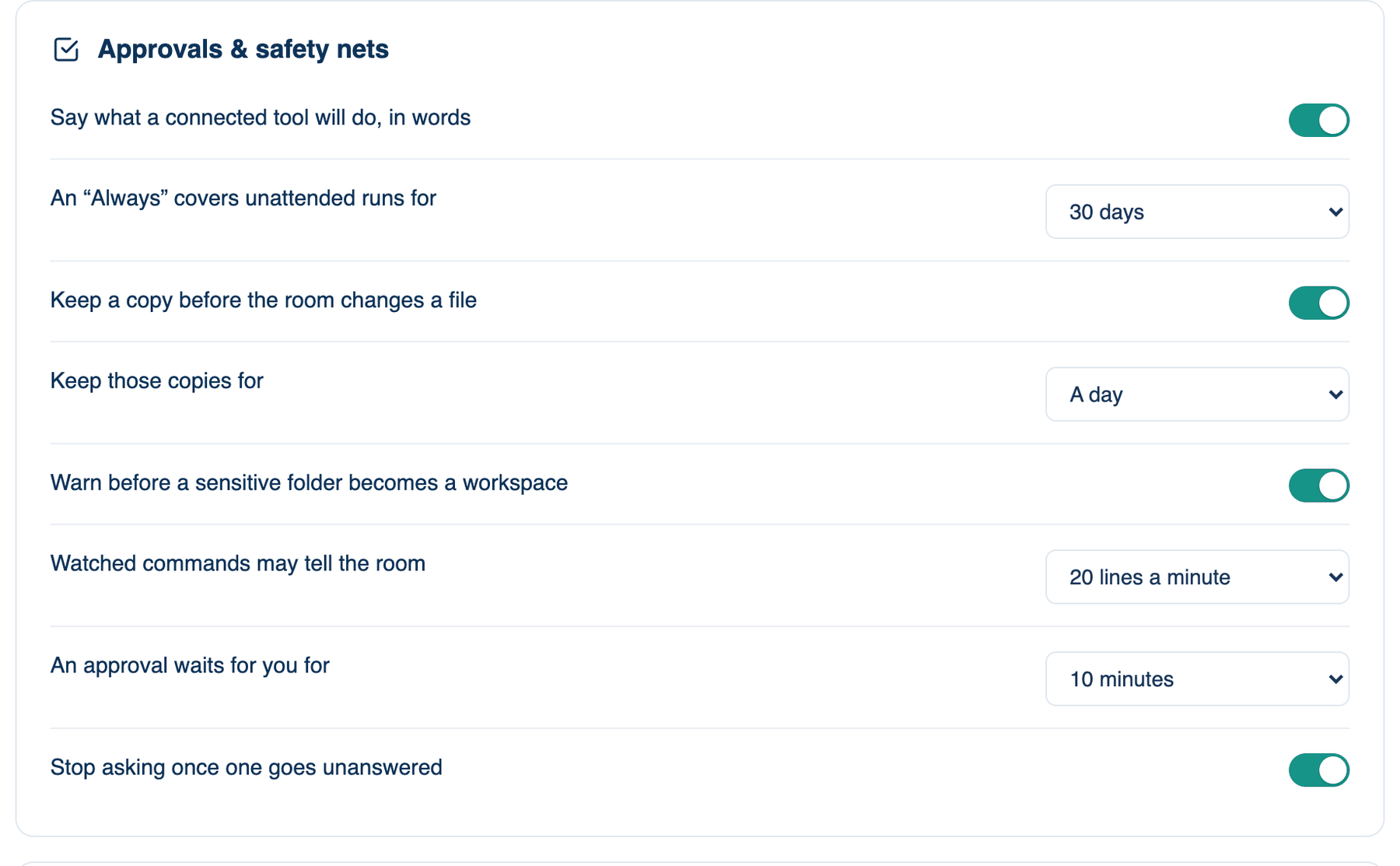
Where to find it. Mac only: Settings → Workspace → Privacy & Security → Approvals & safety nets. These stay on this Mac.
| Setting | Default | What it does | Change it when |
|---|---|---|---|
| Say what a connected tool will do, in words | On | An MCP card leads with a sentence and marks anything naming where data goes. Rules and Always still check the exact call. | You would rather read the raw call. |
| An "Always" covers unattended runs for | 30 days | A schedule or headless run uses an Always only while it is this recent. Choices: never, 7, 30, 90 days or a year. | Never, if automations should not lean on old answers. |
| An approval waits for you for | 10 minutes | Then the card comes down, nothing is done, and the seat is told you are away. Choices: 2, 5, 10, 30 minutes, or until the turn ends. | Longer if you step away during long runs. |
| Stop asking once one goes unanswered | On | After one card times out, the rest of that turn is refused at once. Your next message starts asking again. | You want every card to wait its full time. |
Answering from elsewhere
A card raised on your Mac also reaches your phone, the web and Slack. On the phone and the web you can Allow or Deny; Always is only on the Mac. Switch on Approve only on this Mac (Settings → Account → Sign-in & Security, default off) and the other devices show the question and say where to answer it, but cannot answer. A team can require this for every member.
Further reading. Article 14, Human oversight — EU AI Act, 2024. LLM06:2025 Excessive Agency — OWASP, 2025.