What Governance is
Governance is your team's rulebook for AI use: which models may run, what a run may touch, what may be shared, and what the team keeps as evidence. It belongs to the team, so every member's Mac, the web app and the iPhone read the same policy. Off a team there is no Governance, and the page points you to Settings → Team.
Where to find it. Mac: Settings → Account → Governance. Web: Settings → Governance. iPhone: Settings → Governance. Team plan.
Who can change it. The team's owner and admins edit every line, on any of the three apps; on the iPhone through Change the team's rules. Members and auditors read the same page without controls. If the team requires a fresh sign-in before an admin action, a policy change asks for one. A Mac that has not synced a policy yet says "No team policy on this machine" until its next sync.
Mac, Server, or both
Every line carries a chip. Mac means the member's app applies it. Server means our servers refuse on their own, whichever app sent the request. Mac + Server means both. Be realistic about Mac lines: someone with administrator rights on their own machine could work around them. Spend, retention, sharing, data region, rate limits and the team pause are held on the server.
Where a member has a setting of their own for the same thing, the stricter of the two applies.
Profiles
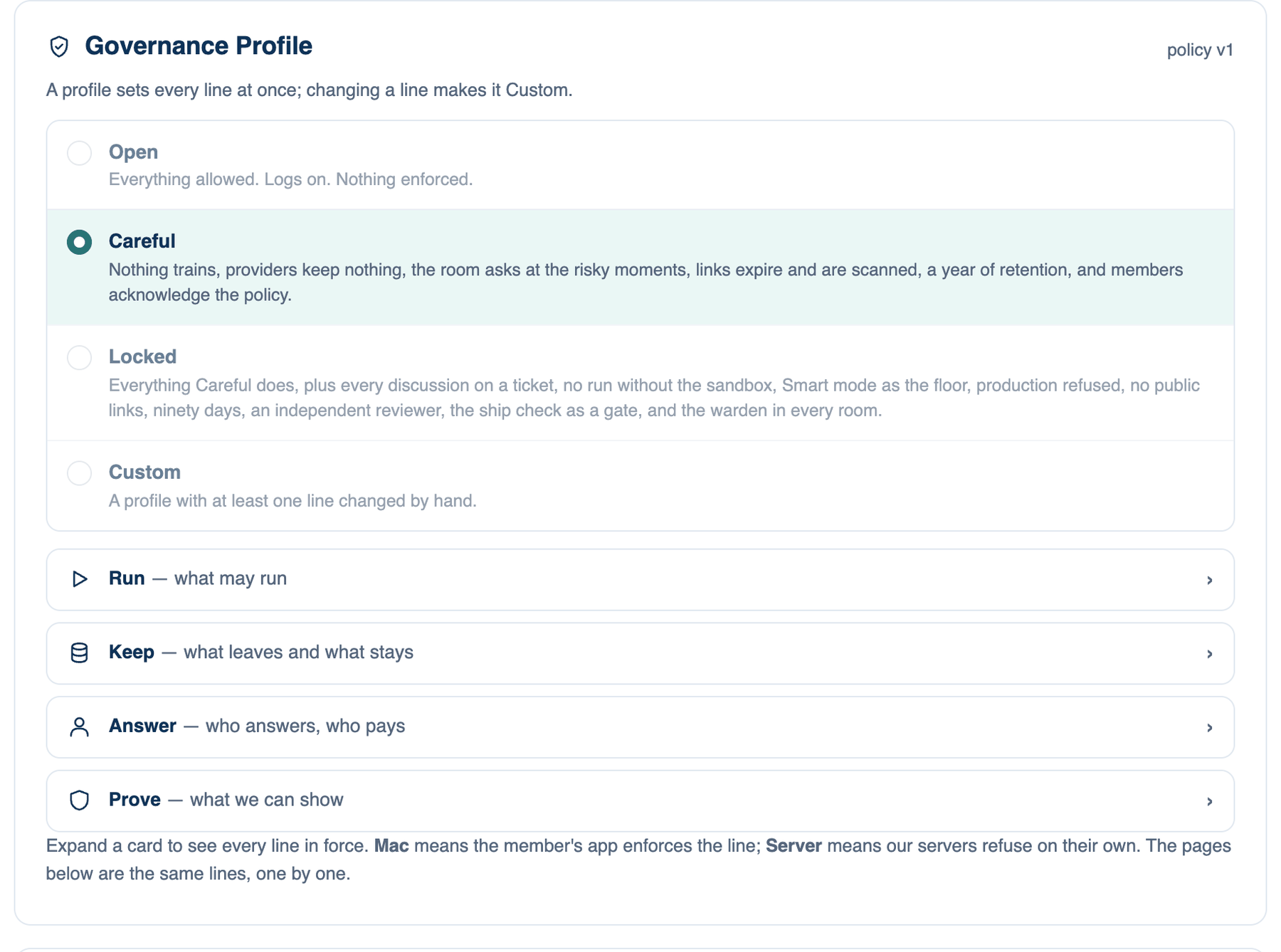
A profile sets every line at once. Choose one under Governance Profile:
- Open: everything allowed, logs on, nothing enforced. A new team starts here.
- Careful: nothing trains on prompts, managed seats use providers that keep nothing, the room asks at the risky moments, links expire and are scanned, a year of retention, and members acknowledge the policy.
- Locked: everything Careful does, plus every discussion on a team project, no tools without the sandbox, Smart mode as the floor, production refused, no public links, ninety days of retention, an independent reviewer, the ship check as a gate and the warden in every room.
- Custom: shown, never chosen. Change one line by hand and the profile reads Custom.
How to use it.
- Open Governance and read the four summary cards, Run, Keep, Answer and Prove. Each lists the lines in force with their chips.
- Pick a profile. Its lines change for the whole team at once and the policy version goes up. The iPhone asks you to confirm first.
- Adjust single lines in the three parts underneath: Policy, Access & Data; Tools & Execution; Sharing, Review & Evidence.
When to use it. Careful suits a company with a written policy and no compliance team. Locked is for answering a regulated customer's questionnaire.
When not to use it. Don't start a team that is still learning the app on Locked. A Smart-mode floor and refused production commands stop people in ways they will not expect in their first week.
Locked parts on a member's Mac
When the team holds a sandbox protection, the member's Settings → Workspace → Sandbox shows that part switched on and greyed out, labelled "Required by your team".
Acknowledging the policy
With Members acknowledge this policy before their next run on, each member sees the policy once per version: one page of numbered sentences headed with the version number, and an Understood button. Their next run waits for it, and the click and its date go to the team's audit log. Owners and admins see how many members have acknowledged the current version on the Team page.
Further reading. Artificial Intelligence Risk Management Framework (AI RMF 1.0), NIST, 2023. ISO/IEC 42001:2023, AI management system, ISO/IEC, 2023 (paywalled). NIST Role Based Access Control, NIST CSRC.