The composer is the box at the bottom of the discussion and the row of chips under it. On the Mac, everything that decides what your next message will do sits on that row, left to right.
The box
Type and press Return to send; ⇧Return adds a line. The placeholder reminds you that / opens commands and @ asks one seat. After a run, the box may show a suggested next message in light grey; press Tab to write it in, or start typing to dismiss it.
Above the box, a meter line shows the elapsed time, what this session has spent, and what the room is doing now.
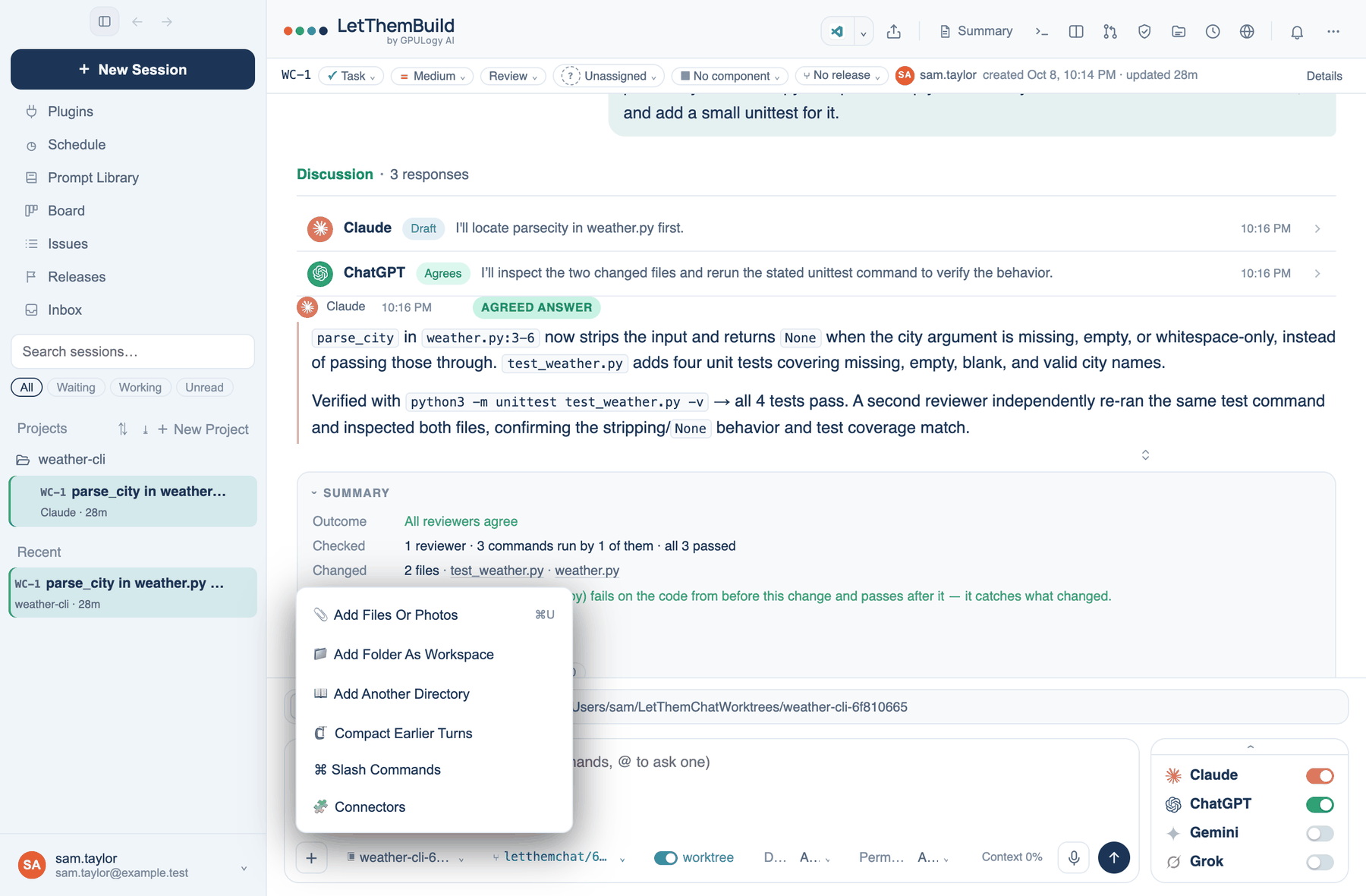
The + menu
Where to find it. Mac: the + button at the left of the row. Web and iPhone: the + button beside the box.
| Item | What it does |
|---|---|
| Add Files Or Photos (⌘U) | Attach files, images, PDFs, Office files and zip archives |
| Add Folder As Workspace | Point this discussion at a different folder |
| Add Another Directory | Let it read a second folder, up to eight |
| Compact Earlier Turns | Fold older turns into one note |
| Slash Commands | The same list as typing / |
| Connectors | Settings → Plugins |
The web menu also has Search the web (attach the top results so every seat reads the same pages) and Use a skill; the iPhone has Take Photo and Photo Library.
Attachments and long pastes
Drag a file onto the composer, paste an image, or use the + menu. A long paste becomes an attachment card rather than flooding the box. Documents are turned into text before any model reads them, which costs fewer tokens: PDF, Word, PowerPoint, Excel, images (read with OCR), audio, HTML, CSV, JSON, XML, zip and EPUB. Remove an attachment with its ×.
Folder, branch and worktree chips
These are Mac only, because they describe this Mac's checkout.
Folder chip. The workspace's name. Its menu has recent folders, Show In Finder, Copy Path, Change Folder…, Open Repo On GitHub, Start From A GitHub Issue…, Work Through A List…, Also Read A Folder…, Open In Terminal, Run The Project and Worktree Setup….
Branch chip. Shown in a git repository. Its menu has Review the branch, Copy Branch Name, Open In Terminal, and a list to switch branch.
worktree switch. On means this discussion works in a git worktree of its own, on its own branch, so your checkout is untouched. Off means it works in the checkout itself. The default comes from Settings → Workspace → Work in a worktree of its own (on); the switch overrides it for this discussion only.
Turn the worktree off when you want the room's edits to show up in the editor you already have open on that branch. Leave it on when you are working in the same folder yourself, or running two discussions in one repository.
Further reading. Pro Git, git-worktree and branching — Chacon and Straub, 2014.