The drawer
The screen is always a discussion, and the drawer slides over it. It is titled Discussions; its toolbar has compose (long-press it for Temporary discussion), New folder and the Settings gear. Then, from the top: New discussion; shortcuts to Artifacts, Schedule, Prompt Library, Board, Issues, Releases and Inbox, which carries an unread badge; the Show filter (All, Waiting, Working, Unread); Devices; Recent; your folders and projects; Starred; Team; the date groups; and Archived.
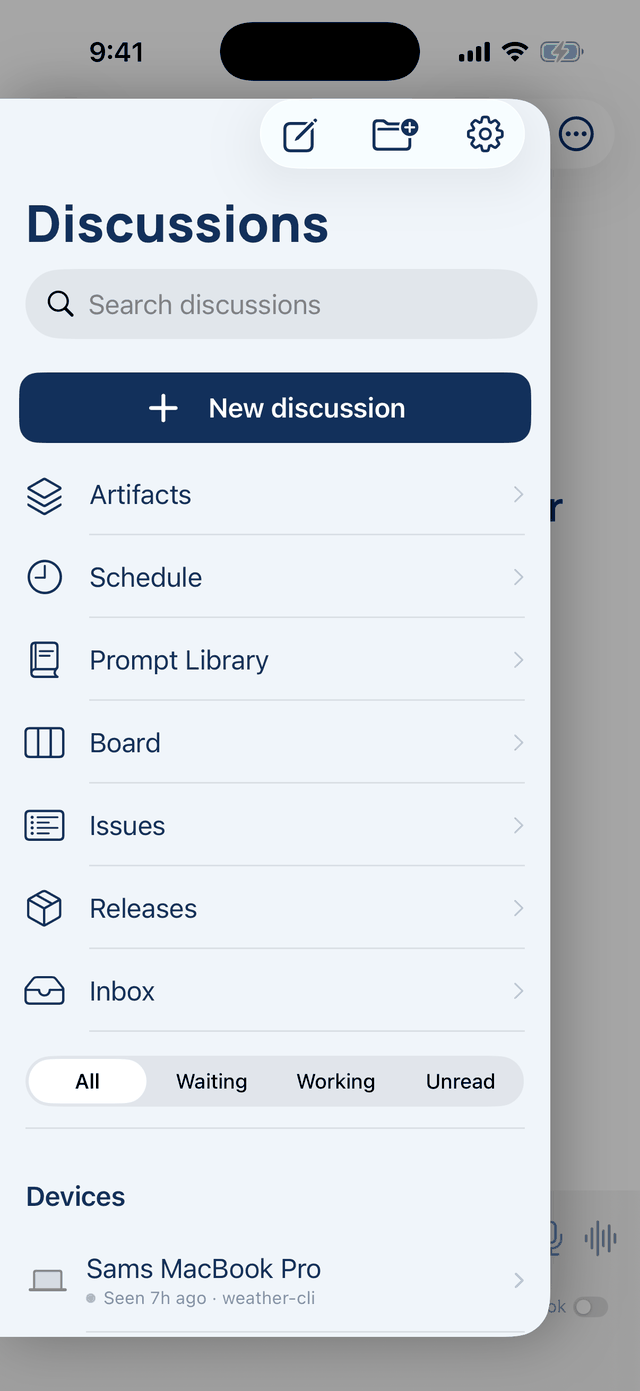
Long-press a discussion to star, rename, move it on the board or into a folder, archive or delete it. Swipe left for Delete, Move and Archive. A teammate's discussion offers neither move nor delete. Type two or more characters in the search field and Ask across your discussions appears above the matches.
Devices lists the computers signed in to the desktop app. Tap one to start a discussion that runs there, with that machine's seats and checkout. Add device shows how to set up remote control.
A discussion
The title bar has a compose button and the ⋯ menu. The phone's menu carries two choices the web keeps elsewhere, Depth and Lead, both for this discussion only, plus Compact earlier turns with the share of the window in use, Review a diff… and Send feedback….
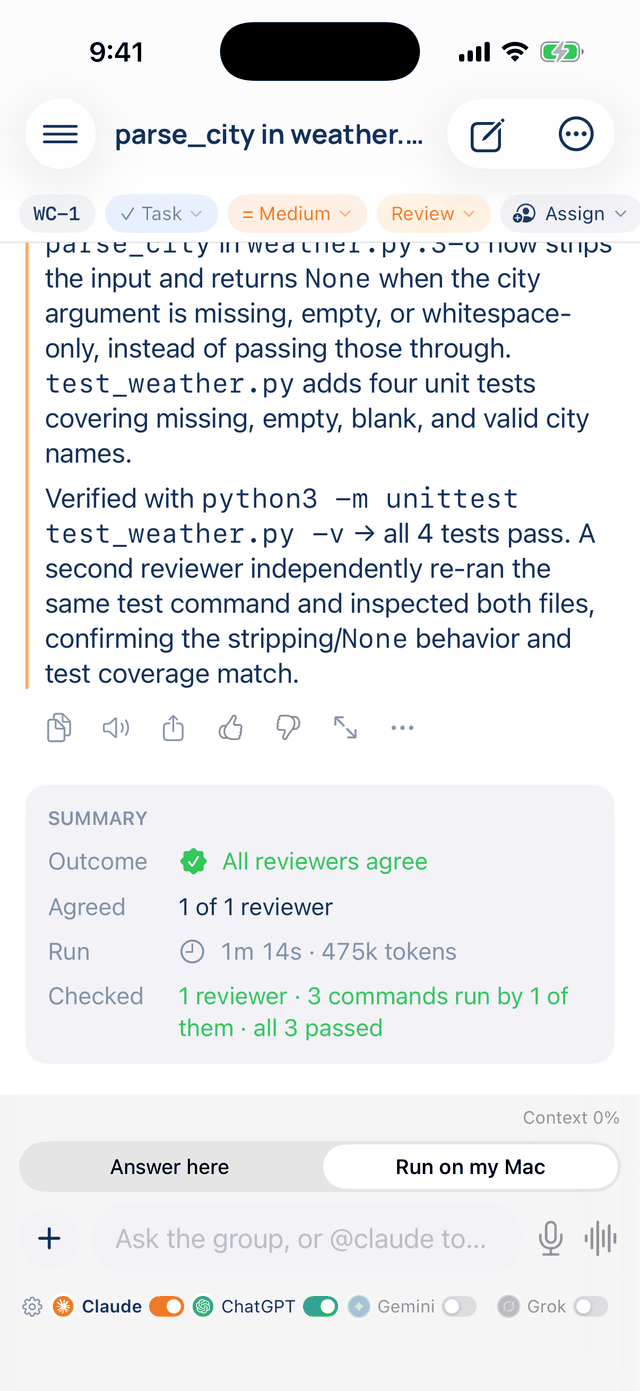
Above the transcript, one banner shows at a time: a Mac approval, the offer to ask the whole room, a live run on another device with Stop it, or a run that stopped before the room finished. Long-press a message for Copy, Ask about this, Select words…, Read aloud, Share…, Branch in new chat, Edit and ask again, Save to Prompt Library and Ask again from here. An empty discussion shows Browse the Prompt Library rather than suggestion cards.
The composer shows a running-tasks chip when a Mac has background tasks, the context meter (orange from 80%), and Where this runs (Answer here or your Mac) when the discussion can run on one. The input row has + (Take Photo, Photo Library, Attach File, Use a Skill), dictation and Send. While the room works, Send queues your message after the current answer; long-press it for Send now to cut that answer short. Under the input, the seat strip; its gear opens Who's in the room.
Approvals on the phone
A discussion running on your Mac that needs your leave, for a command outside the rules or to trust the project's instruction files, shows the request as a banner with its answer buttons. In another app, When your Mac needs an answer raises a notification. The run waits until someone answers, here or at the Mac, for as long as the Mac's own approval wait allows (Mac: Settings → Workspace, default 10 minutes).
When not to answer here. When the command is long or unfamiliar. A phone screen cuts context, and Deny costs less than a wrong Allow. The Mac setting Approve only on this Mac (Settings → Account → Sign-in & Security, default off) keeps every approval on the Mac.
Sharing into the app
Any app's share sheet offers LetThemChat for text, links, web pages, files and images. The sheet says the item waits in a new discussion the next time you open the app, and nothing is sent until you press send. Whether it lands in a new discussion or the open one follows Settings → Appearance → Shared into LetThemChat. For Shortcuts, the address letthemchat://new?text=… puts words in the composer.
There are no widgets or Live Activities.