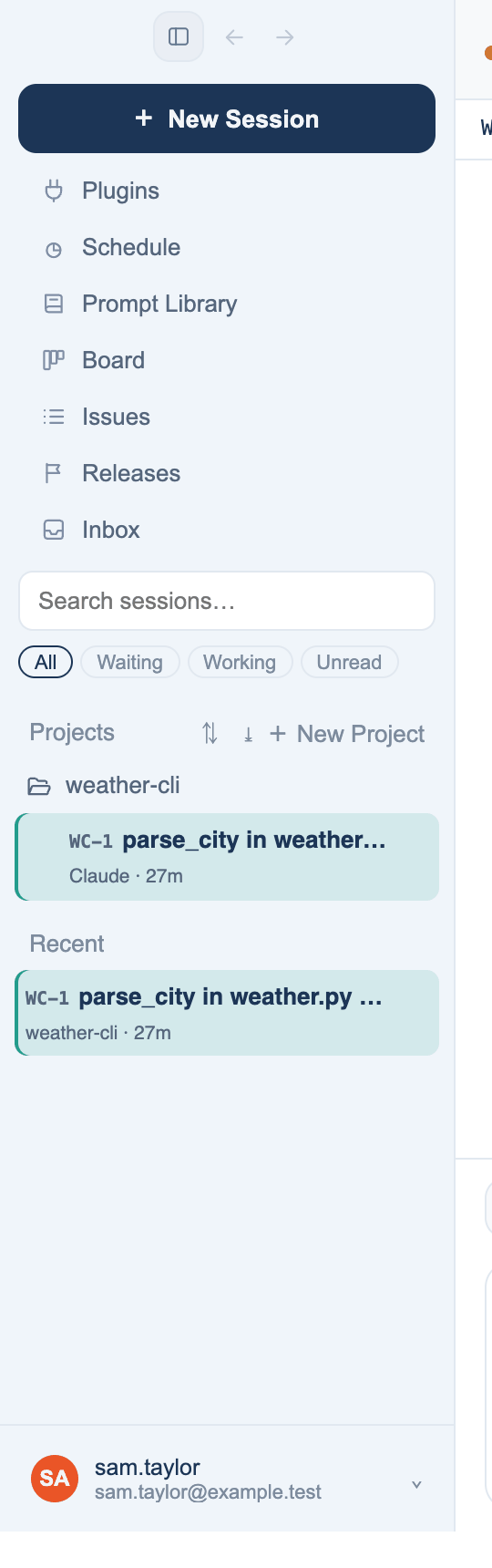
The sidebar is the list of everything you have asked, with the few things you open every day pinned above it. On the Mac it sits on the left of the window; on the web it is the left rail; on the iPhone it is the drawer behind the ☰ button.
New Session
Where to find it. Mac: the orange New Session button at the top of the sidebar, or ⌘N. Web: New discussion (⌘⇧O). iPhone: New discussion at the top of the drawer, or the compose icon.
How to use it.
- Click New Session. A discussion opens in your default workspace and is named from your first message.
- To start somewhere else, right-click the button instead. The menu offers the current folder, New Workspace (a folder named from your first message), Temporary Discussion, your recent folders, and Another Folder… (⌘O).
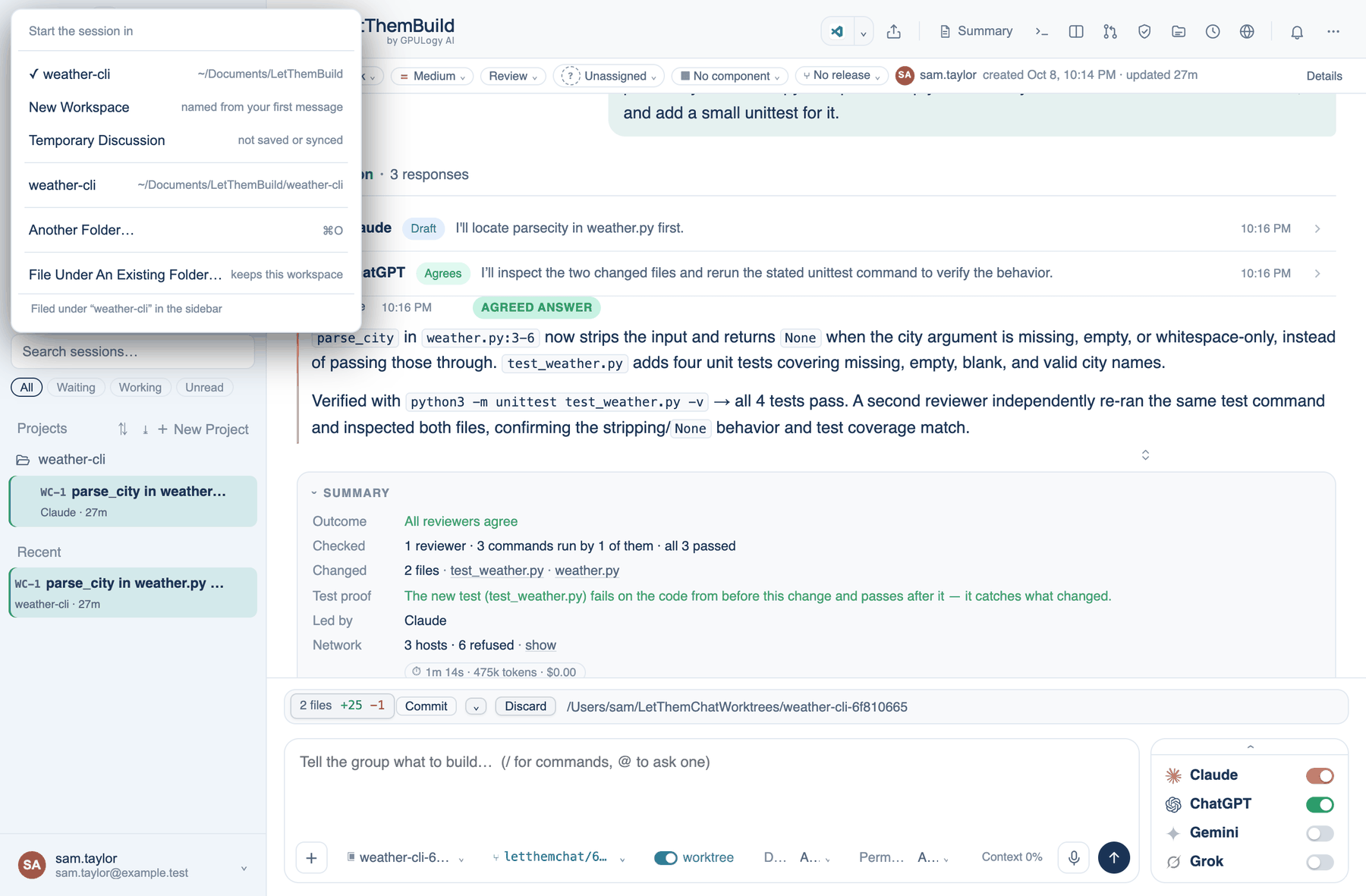
Temporary discussions
A temporary discussion is never listed, synced, searched or remembered from. On the Mac it is gone when the app quits; on the web it is deleted when you leave it; on the iPhone within a day. The model providers still receive what you send, as with any discussion. Start one from the New Session right-click menu or the ⌘K palette (Mac), the Temporary discussion link under the button (web), or a long press on the compose icon (iPhone). A banner across the discussion offers Keep it if you change your mind.
Use one for a quick question you do not want in your history. Do not use one for work you might want to search for next week.
Shortcuts under the button
| Shortcut | Opens |
|---|---|
| Plugins, Schedule, Prompt Library | The matching Settings page (Plugins is Mac only) |
| Board, Issues, Releases | Every discussion as a ticket: by stage, as rows, or by release |
| Inbox | Tickets assigned to you and comments on yours, with an unread count |
| Artifacts | Web and iPhone: what the room made, as a gallery |
The tickets views have their own page, linked below.
Search, Ask and the filters
Search sessions… matches titles and text as you type. Once there is a query, an Ask button appears: it answers the question across all your discussions and links each source. Under the box, the filter chips All · Waiting · Working · Unread narrow the list. Waiting means an approval or a question is open for you. The Mac remembers the chip you left on.
Projects and folders
A folder groups discussions; a top-level folder with a ticket key is a project. Right-click a folder on the Mac for Rename…, Move Up, Move Down, Edit Project…, New Folder Inside… and Delete Folder. On the web, hover the folder; on the iPhone, long-press it. Drag discussions between folders on the Mac and the web.
Right-click a discussion on the Mac for Open In Split Screen, Pin, Move On Board…, Mark As Unread, Rename…, Fork, Change Directory…, Move To… and Delete. Pinned discussions sit above the folders. The web uses Star instead of pin, and the iPhone offers the same through a long press.
Further reading. The Kanban Guide — Kanban University.