The Settings table sets your account's room. Most day-to-day changes happen under the message box instead, and apply to the discussion you are in.
The seat dock
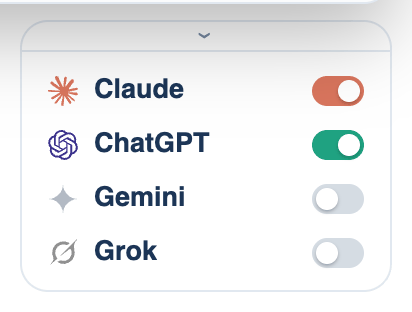
A row of seat tiles sits under the composer, one per seat, each with its maker's mark. Click a tile to switch that seat in or out for this discussion. Models and who leads opens the full table, titled "Who's in the room": one row per seat with Key, Agent, Lead, Model, Effort and Speed. Test all checks every seat that is set up, and Presets keeps named rooms you can put back in one click.
Where to find it. Mac: under the composer (the seat dock). Web: the seat strip beside the composer and its room panel. iPhone: the seat strip by the composer and its room sheet. Default: every set-up seat in.
How to use it.
- Click a tile to leave a seat out. The next turn runs without it.
- To keep a room you like, open the table, press + Save as preset and give it a name, such as "cheap review" or "all four".
- Pick that name under Presets later to put every seat back the way it was.
When to use it. Leaving the reviewers out for a quick question, or putting a fourth seat in for a decision you want checked twice.
Each discussion keeps its own room
Who is in, who leads, how each seat runs and which models it uses are remembered per discussion and synced to your other devices. A new discussion starts with a copy of the last room you used. Keys, endpoints and commands are never part of a discussion's room; they stay with the account or the Mac that holds them.
On the web and the iPhone, opening Settings from inside a discussion edits that discussion's room: the footer says "Opened from a discussion". Opened from anywhere else, it edits the account.
The room follows Run on my Mac
When a discussion on the web or the iPhone is set to run on your Mac, the seat strip shows that Mac's seats, including the ways only a Mac has: a CLI, an ACP agent, a cloud account. Those rows read "On your Mac", and their models are chosen in the Mac app. Only the choices travel, never a key, a command or an endpoint.
Where to find it. Mac: Settings → Account → Account → Sign-in & Security → Show this Mac's seats on my other devices. Default: on.
When not to use it. Switch it off if you would rather the phone show only the account's own seats, for example on a shared family account.
Held by your team
On a Team plan, an owner or admin can block models. A seat holding a blocked model shows "Held by your team" in amber, its Enabled switch is locked, and the blocked model is no longer offered in its menus. Pick another model to bring the seat back, or ask an admin.