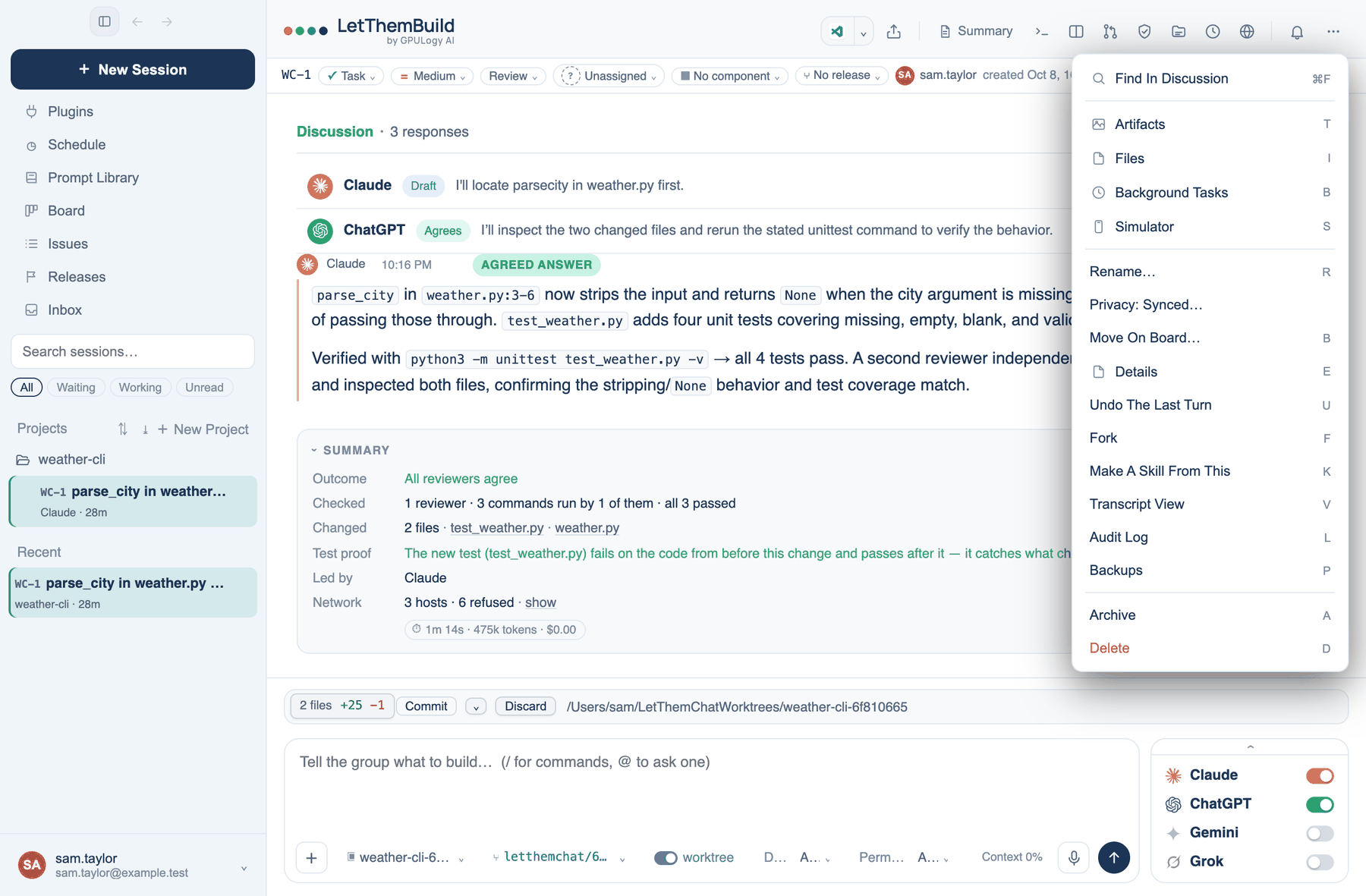
The Mac's title bar holds the controls that act on the whole discussion. Most of them open a tool in the workbench, the rail on the right of the window. The web and the iPhone have a shorter header with Summary, Share and the ⋯ menu.
Left of the title
Hide the session list collapses the sidebar. With it hidden, a search icon appears beside it. Back and Forward step through the discussions you have opened, like a browser's history.
Open in editor and Share
Open in editor opens the workspace in the editor the app found on this Mac, shown by its icon. With two or more editors installed, a chevron beside it lets you choose. Share this discussion opens the share panel; see the transcript actions page for what a link shows.
The workbench tools
The toolbar opens one tool per button. Tools stack in the rail, and you can drag one into a second column or down into the bottom row.
| Tool | What it shows |
|---|---|
| Summary | How the discussion ended, its ticket, and what to do next |
| Terminal | A real shell in the bottom dock, with a strip of what the seats ran |
| Diff | What changed in the workspace, layer by layer |
| Pull requests | Pull requests open on this repository |
| Review | What was verified, and how |
| Sources | Every file and paste the discussion was given |
| Background tasks | Servers and jobs started in the background, and the phone preview |
| Browser | A tabbed browser the seats can drive |
Files, Artifacts and Simulator are in the ⋯ menu rather than the toolbar. Files is a tree and editor for the workspace with Revert, Save and an Autosave box (off by default). Artifacts lists what the room made, with Preview, Code, Edit, Reveal and Not from this discussion.
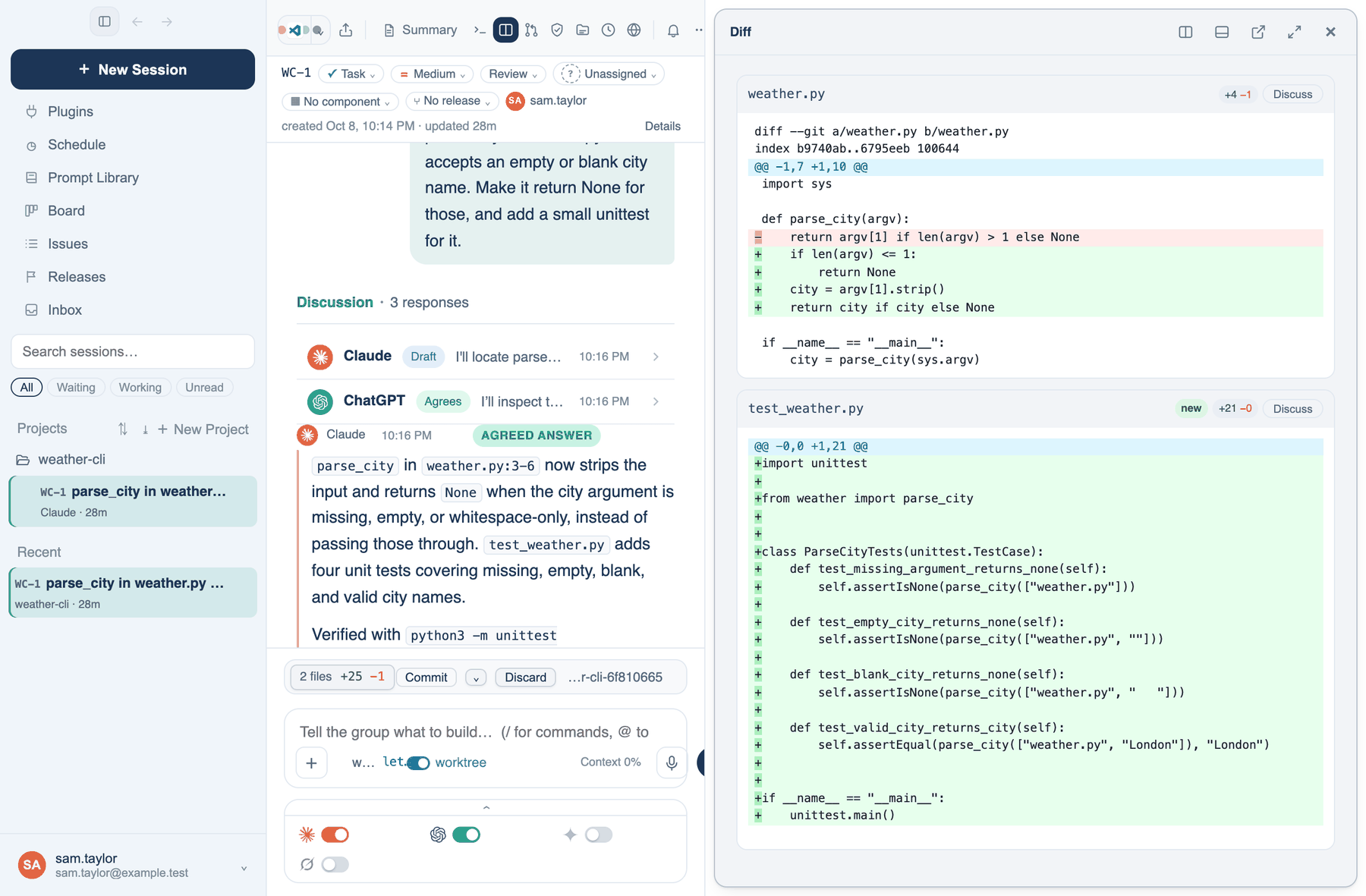
Split view
Two discussions can sit side by side in one window. Right-click a discussion in the sidebar and choose Open In Split Screen. Each pane keeps its own composer, seats and suggestions. This is useful when one run is building and you want to ask about something else without losing sight of it.
The notification bell
Notifications shows the notices you have not dismissed, with a count on the badge. Run notices also appear as cards in the corner of the window. Turn that off in Settings → Appearance → Display → Show notices in the corner and they appear inline in the discussion instead.
This discussion menu
The ⋯ button holds Find In Discussion (⌘F), Artifacts, Files, Background Tasks, Simulator, Rename…, Privacy, Move On Board…, Details, Undo The Last Turn, Fork, Make A Skill From This, Transcript View, Audit Log, Backups, Archive and Delete. Undo The Last Turn rolls back the session's files and transcript by one turn.